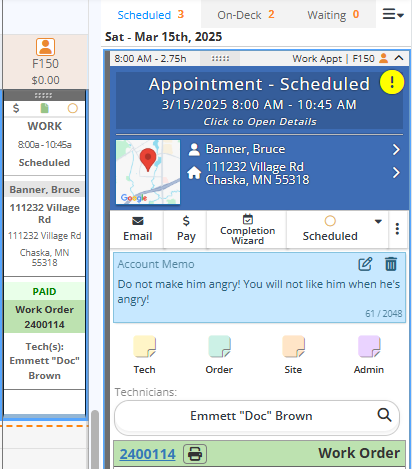
This puts a small alert next to the account information on the account page, in the QuickAdd, and on order pages. That way you get an easy visual reminder about the account.
By default, the ALERT is a flag and doesn’t print anywhere. The memo field would be the place to put a note your client will not have access to view with the reason for the ALERT. It shows up in the Quick Add, the Order and Schedule and the mobile app as well that the account has an alert.
How To Put an Alert on an Account from the Overview:
Simply click the triangle ! button as show, and it turns red when there is an active alert. You'll also notice a thin gold bar around the memo area to highlight the Alert. Type your notes or reasons for the alert, then click the Save button (the small disk icon).
S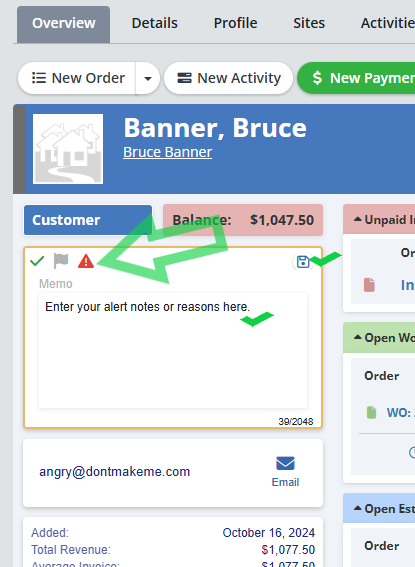
From the Details tab:
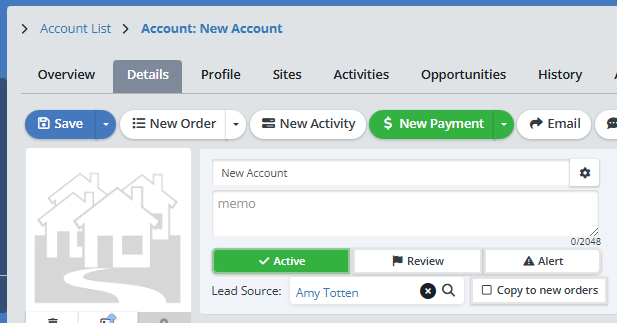
In the account memo section, there is an “Alert” button.
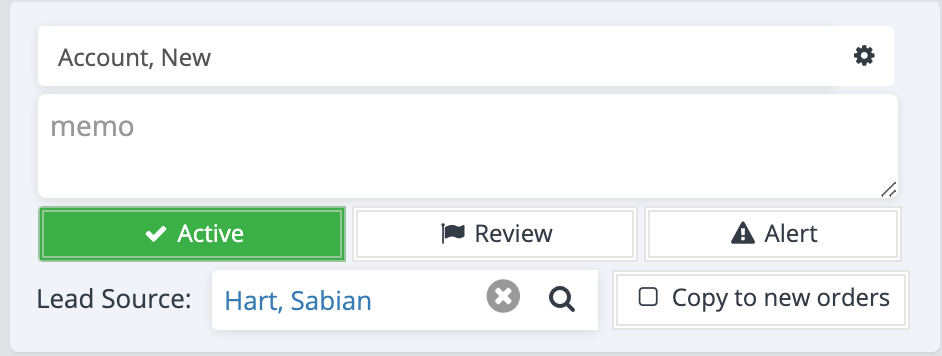
Click on the “Alert” button, and the account will be marked.
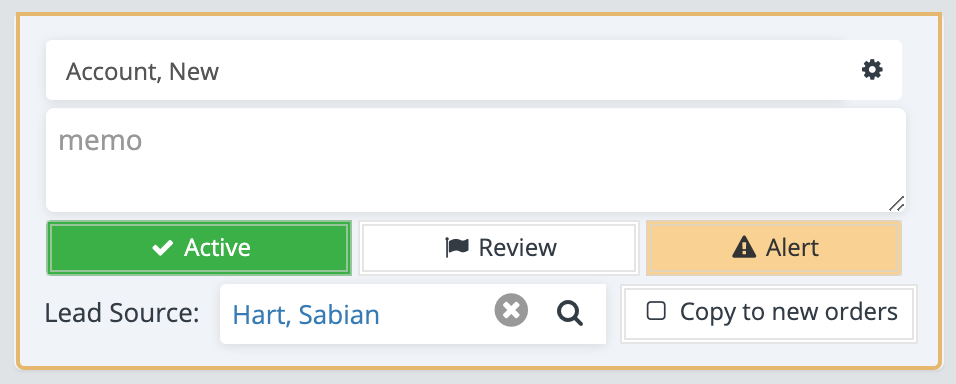
In the memo section, add any notes you want yourself or your team to be able to see when you pull up this account.
Make sure to click “Save” on the account.
Where can I see the Alert?
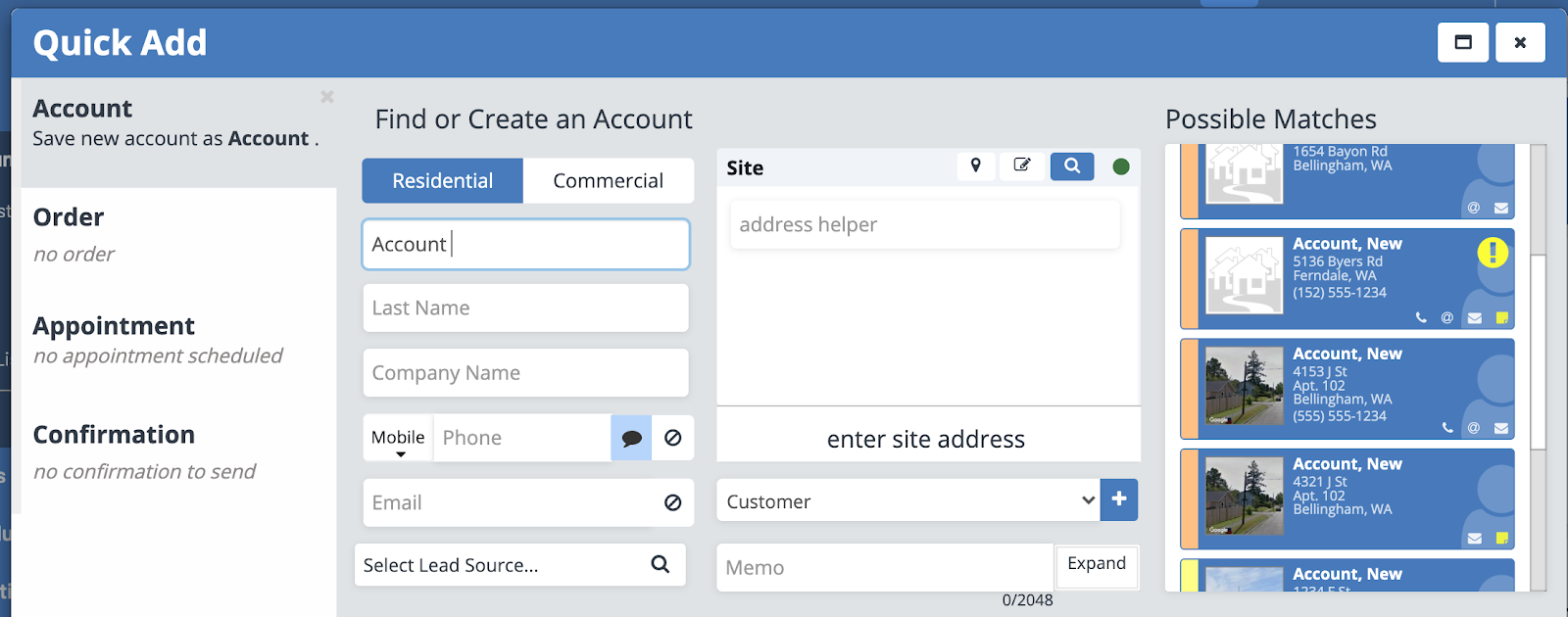
If you search for the account on the Quick Add, then the account will appear with a yellow exclamation point next to it.
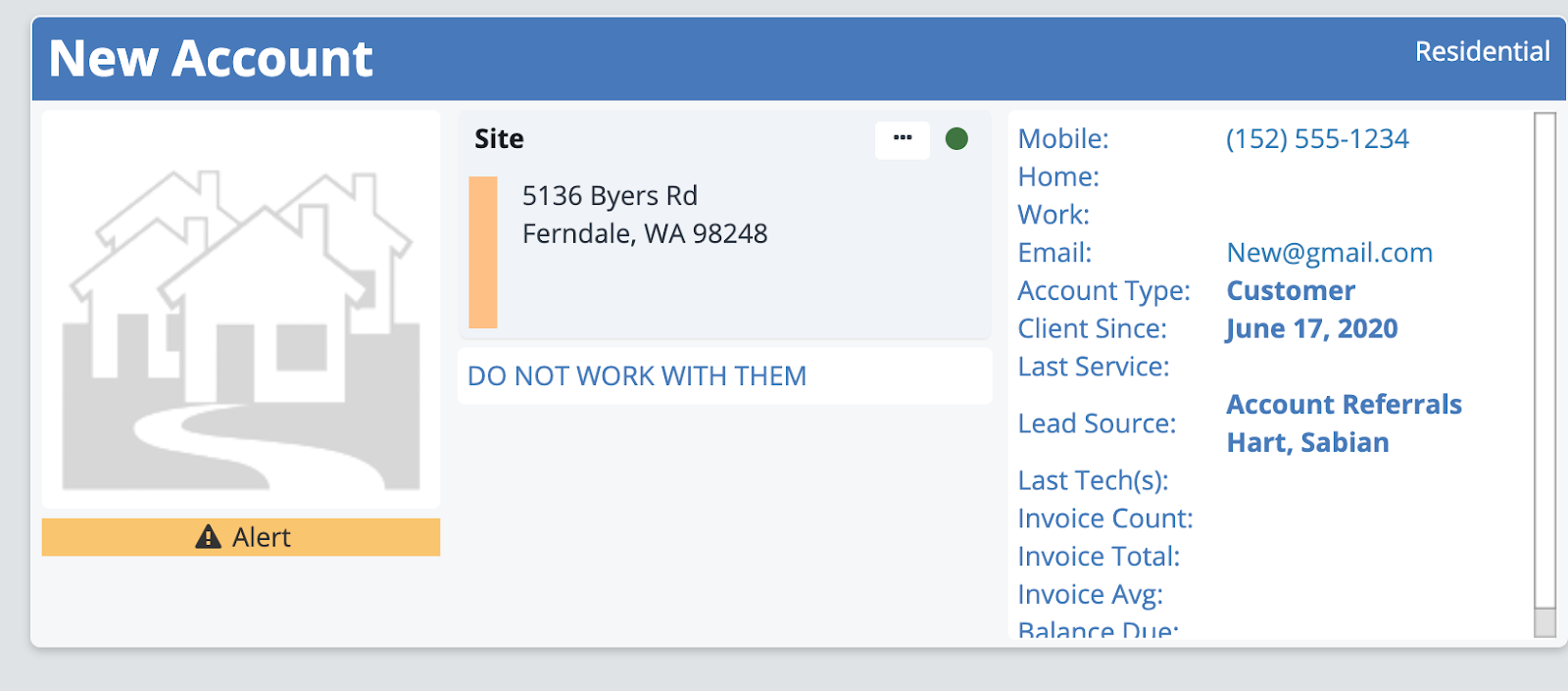
If you select the account, it will have an “Alert” notification under the account photo, alongside your memo for the account.
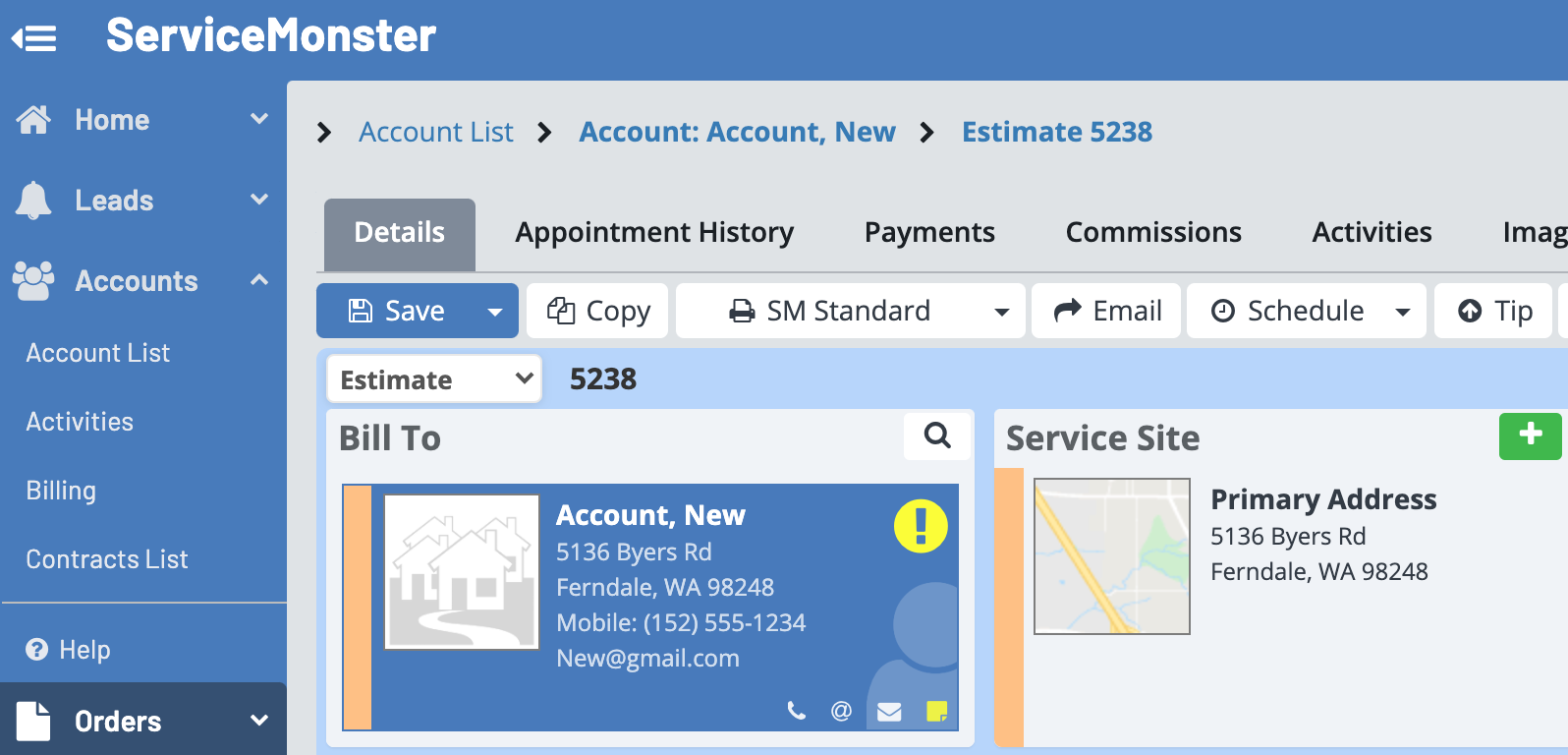
From the Order page
If you look at the page for any orders made on the account, then you will see the yellow exclamation point alert with the account information. If you hover your mouse over the exclamation point you will be able to read the memo.
On The Schedule
If you click on an appointment on the schedule, in the side-bar under Scheduled you will be able to see that appointment details. This will include a yellow exclamation point to notify the alert, which itself is visible in the blue Account Memo box.