
Step 1: Access Payments Section
Click on Payments on the left-hand side.
- Scroll down to view features and fees associated with Service Monster Pay.
- Click on Enroll Now to start the enrollment process.
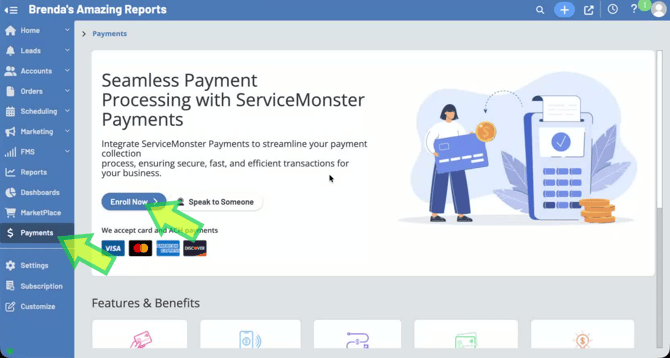
Step 2: Verify the basic information & choose options.
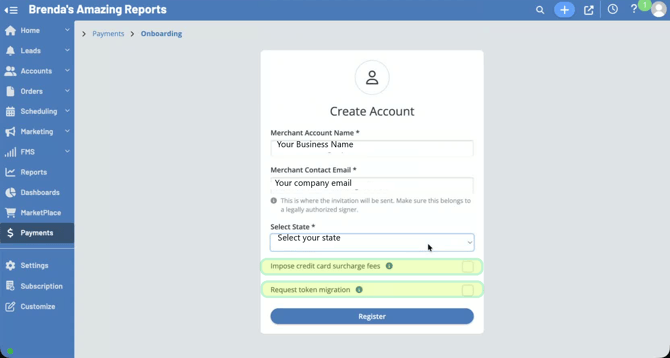
- Ensure your company name and email address are filled in. If not, enter them.
- Select the state where your business is registered.
- Decide if you want to impose credit card surcharge fees. This means that we will pass the majority of the processing fees to the client directly. Check your state or province regulations to ensure they are permitted in your area.
- 2.9% for Visa, MasterCard, and Discover.
- 3.5% for AMEX.
- Some credit cards themselves may charge higher than 2.9% or 3.5% for AMEX. In those instances, the client will only pay 2.9%/3.5%, and the remainder is charged to you.
- Note: Debit cards cannot be surcharged.
- If applicable, request token migration if you have over 300 stored credit cards with Stripe or Authorize saved in ServiceMonster currently. This may add up to 30 days of processing time.
- After filling out the required information and options, click Register. An email will be sent to your provided email address. Go to your email and retrieve the code.
Step 5: Verification Steps
For security, there are 2 verification steps. One is for email, the other is for text. You will need to enter them one at a time.
Step 7: Agree to the terms & begin the application.
.png?width=670&height=362&name=4d3bef98-d78c-463d-8f25-fd430cd91a18%20(1).png)
The next steps will feel like any credit card or finance application you have filled out in the past. Please take your time to ensure accuracy. On the left side you’ll see a progress bar to ensure you have fulfilled each step.
Scroll through the terms and conditions.
- Check the box to agree and select I agree.
Step 8: Fill Out Business Information
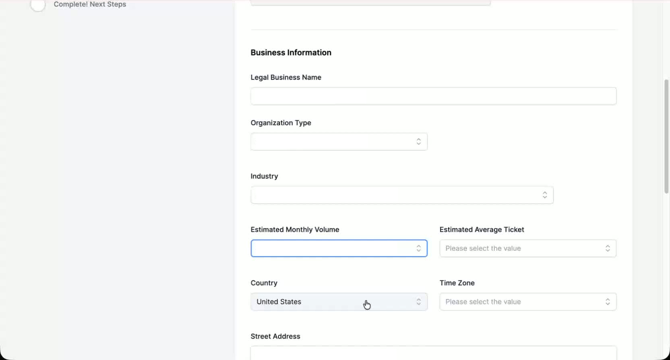
Next, we’ll fill out information about your business.
Enter your business type, industry, estimated monthly income, and average individual invoice.
- Fill in the other information as requested.
Step 9: Complete Merchant Application
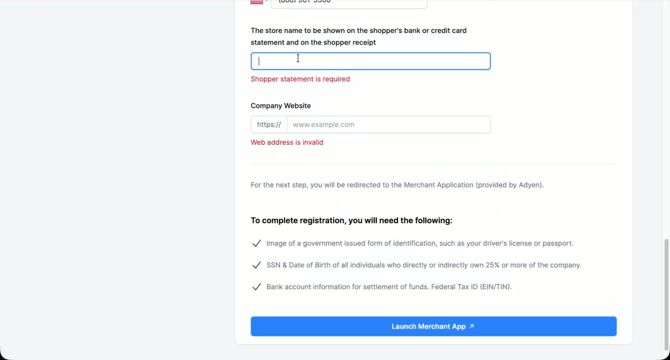
Enter the business name you want your clients to see on their bank statement.
- Enter your company website.
- Complete any remaining fields and click to launch the Merchant application.
Step 10: Merchant Verification
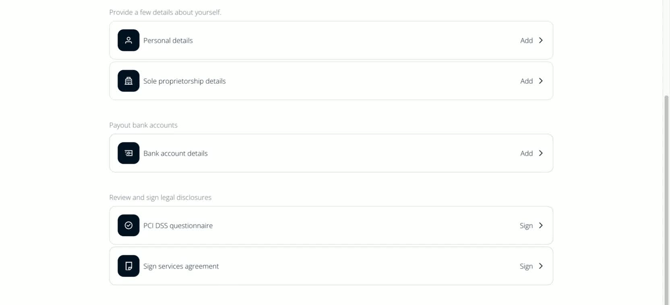
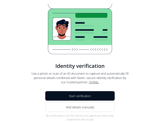
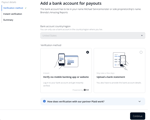
The next steps will include verifying personal and business information, entering your bank account and answering an industry-standard questionnaire about how your business uses credit cards. You may upload your ID for faster verification. You also have the the option to direct link your bank account or you may upload a bank statement for verification.
Step 11: Wait for Account Creation
Expect the account creation process to take about up to 3 business days.