
Where Can I Add In Company Info?
From the ServiceMonster main screen, you can click on the settings at the bottom of the left-hand side menu.
For a more in depth view of every setting on this page and what they mean, click here.
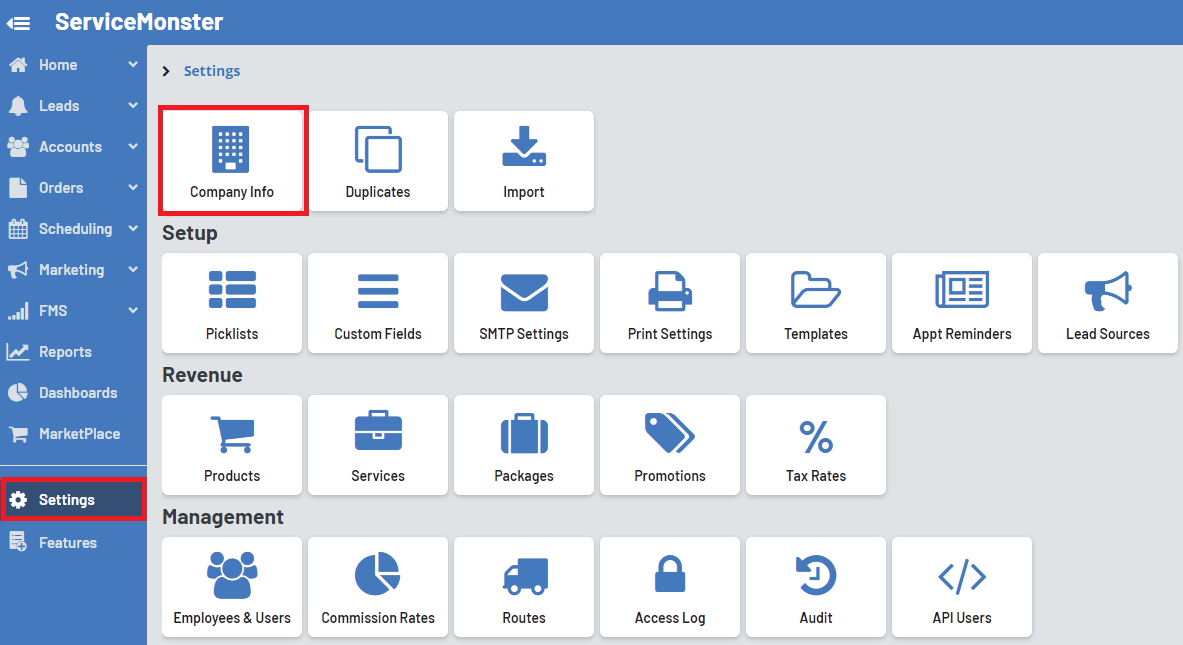
Here, click on the Company Info box. This is where you can fill out your company's information.
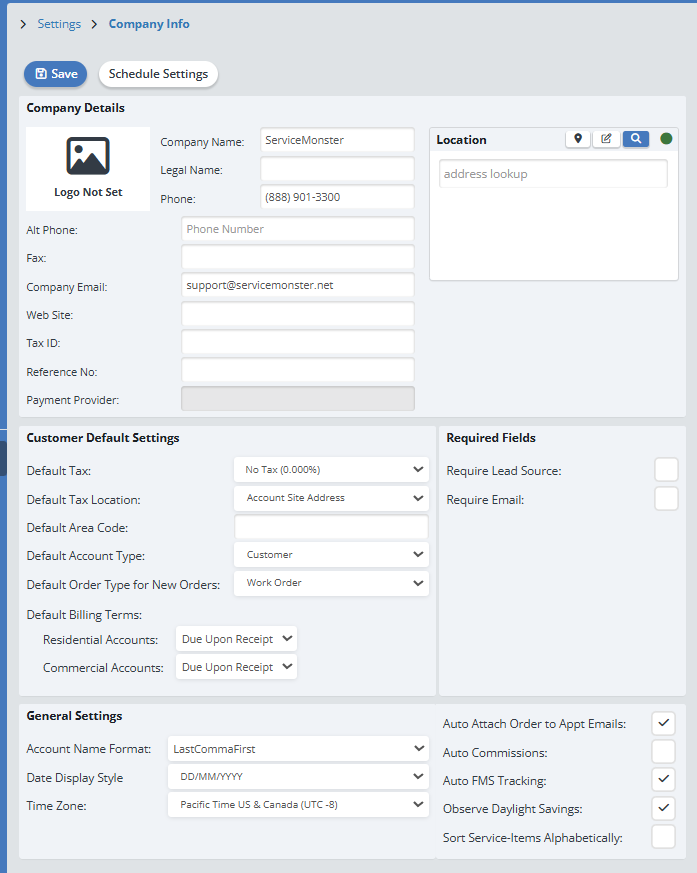
Company Details
The first section is your companies information, you can think of this as being client-facing, as it is used on the forms created through ServiceMonster.
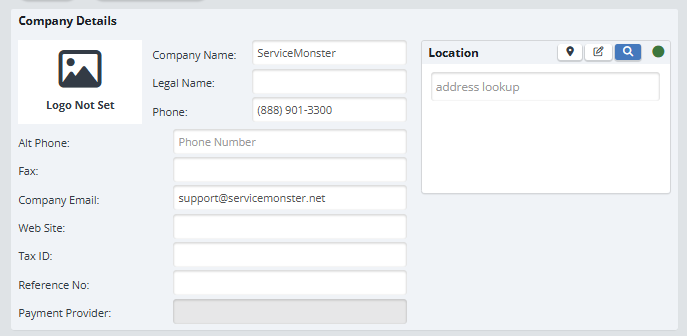
You can add in your company logo by clicking on the "Logo not Set" icon, then choosing a file.
Once you have uploaded your company logo, it will be displayed automatically on all orders and billing statements. The logo should be one of the internet recognized image file formats like .bmp, .jpg, or .gif. The maximum allowable dimensions of your logo are 800 pixels by 800 pixels, 300 dpi
Customer Default Settings and Required Fields
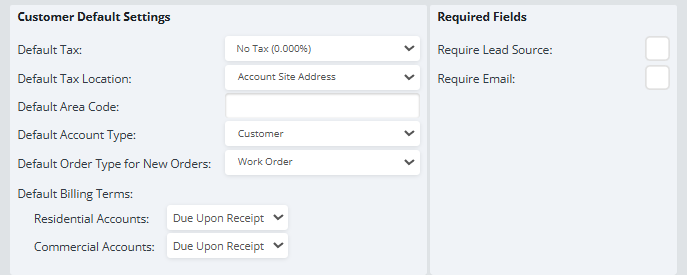
Here is where you can choose the information that will be used as defaults when creating a customer account or order within your ServiceMonster system. You can also require that an email address and/or a lead source be required when creating a new customer account or order.
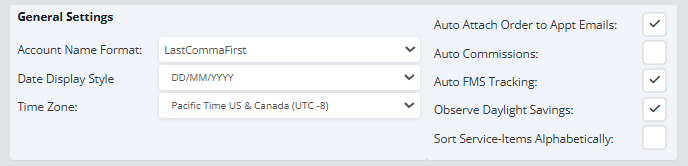
General Settings:
These are our general system settings.
Once you have everything filled and and customized to your liking, click "Save" to save that info into the system.