
The CompanyCam integration sends photos taken in CompanyCam into ServiceMonster automatically, so your office and techs see them on the matching orders in both ServiceMonster Cloud and the ServiceMonster mobile app. As they are a separate company, you'll need to set up your own private account with them.
Don't have a CompanyCam account yet? Start from the same Marketplace listing. Clicking Connect takes you to CompanyCam's site, where you sign up and complete your subscription with CompanyCam. Then return to ServiceMonster and finish the steps above.
Some key notes about how our integration works:
- One-way photo flow: photos move from CompanyCam into ServiceMonster. Photos taken in ServiceMonster using the native camera function are not sent to CompanyCam.
- Orders become projects: once an order is scheduled, ServiceMonster creates a matching project in CompanyCam, grouped by the service site address.
- Native photos still work: the ServiceMonster photo feature is unchanged. CompanyCam is an optional extra layer on top of it.
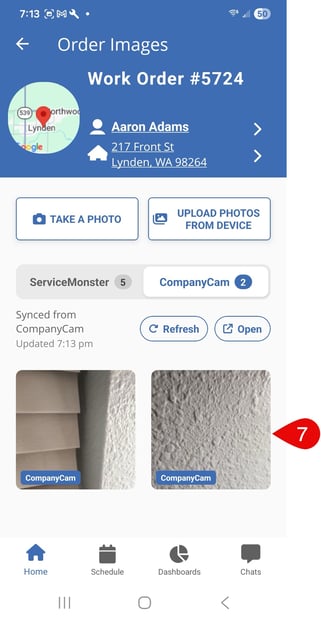
- CompanyCam photos carry a CompanyCam label, so you can tell where each photo came from. They show on every order at that site address.
- ServiceMonster photos have no label and stay attached only to the order they were taken on. They will not show in CompanyCam.
- Download: hover over a photo and click the download button. Photos can also be downloaded from CompanyCam.
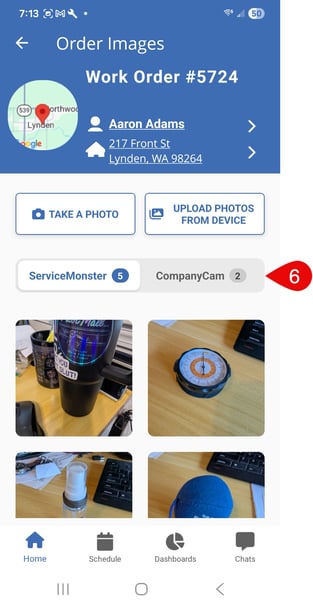
- ServiceMonster shows photos stored in ServiceMonster.
- CompanyCam shows synced CompanyCam photos, with a count of how many there are.
Before you begin
You need an active CompanyCam subscription and admin access to ServiceMonster Cloud.
|
Requirement |
Details |
|
CompanyCam subscription |
Billed by CompanyCam, not ServiceMonster. CompanyCam charges per user, so only licensed users can be paired to a ServiceMonster username. |
|
Complete order addresses |
Orders need a site address and primary address filled in, or they will not sync. |
|
ServiceMonster mobile app |
Current version, plus the CompanyCam app installed on the same device. |
|
CompanyCam login |
Each tech logs in to the CompanyCam app with the CompanyCam user they are paired with. |
Connecting is a one-time setup done in ServiceMonster Cloud.
- In ServiceMonster Cloud, open Marketplace.
- Go to Integrations > Integration Partners and find CompanyCam.
- Click Configuration.
- Click Connect. You are taken to the CompanyCam login page.
- Enter your CompanyCam credentials and approve the connection.
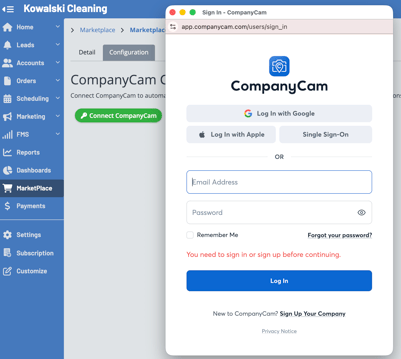
- You return to the Configurations screen in ServiceMonster, which now shows a Disconnect button.
- On the Configurations screen, the left column lists your active ServiceMonster users.
- Next to each user, use the dropdown to pick their CompanyCam user.
- Leave users unpaired if they don't have a CompanyCam license.
- Click Save.
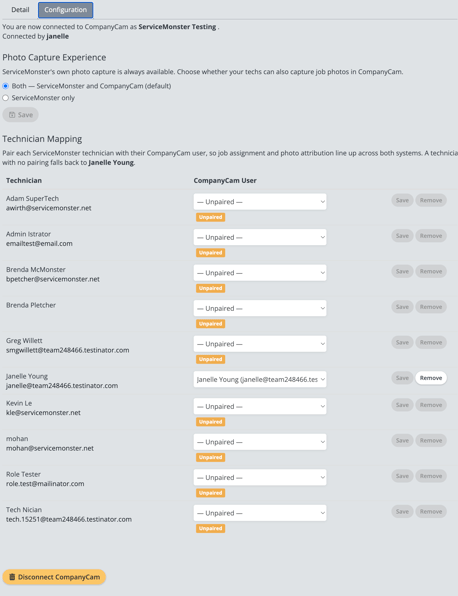
Tip: CompanyCam bills per user. If you have 8 ServiceMonster users but 3 CompanyCam licenses, choose the 3 people who will take photos in the field.
Here's the standard flow for using ServiceMonster with CompanyCam.
- Create the order, making sure the site address and primary address are filled in.
- Schedule it by dragging it onto the schedule. Saving an unscheduled order does not create a project.
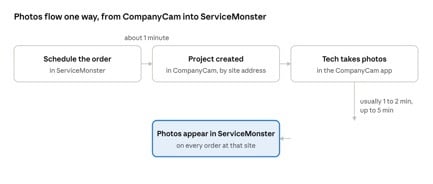
- Within about a minute, a project appears in CompanyCam, labeled with the order number.
- Photos the tech takes in that CompanyCam project sync back to ServiceMonster, usually within 1 to 2 minutes and up to 5 minutes.
- Install the CompanyCam app and log in as the CompanyCam user paired to this tech.
- Log in to the ServiceMonster mobile app as the matching ServiceMonster user.
- Open the order and tap Images.
- Use the two tabs:
- Mobile does not update in real time. To pull in new CompanyCam photos, tap Refresh, or go back and reopen Images.
An order appears in CompanyCam as a project once it is scheduled, and photos come back to ServiceMonster automatically.
CompanyCam to ServiceMonster photo flow · 4 steps
Projects are grouped by site address. CompanyCam keeps one project per site address. If a customer has several orders at the same address, they share one project, and CompanyCam photos appear on all of those orders, including new orders created later. The number of photos does not change sync time.
Taking Photos with CompanyCam in ServiceMonster Mobile
Techs can view CompanyCam photos and jump straight into CompanyCam from any order in the mobile app
-
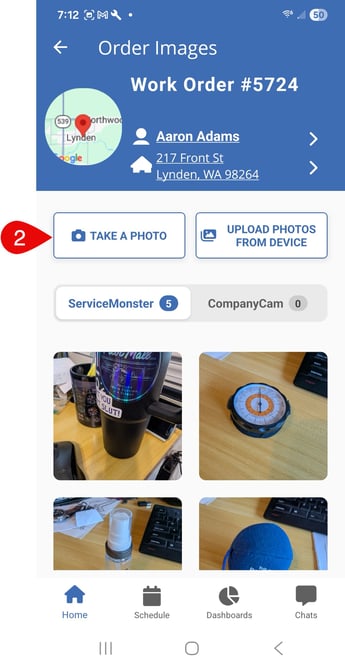
Open any order and go to its Images tab to see both ServiceMonster and CompanyCam photos.
- Tap Take A Photo
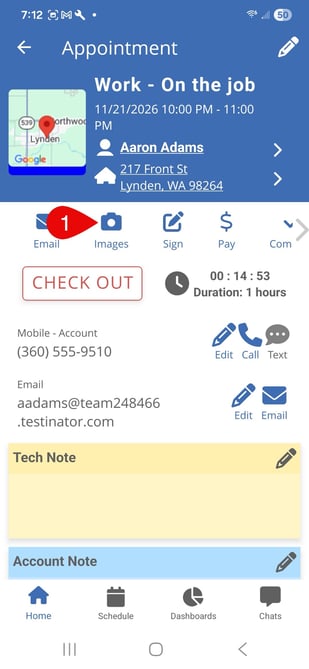
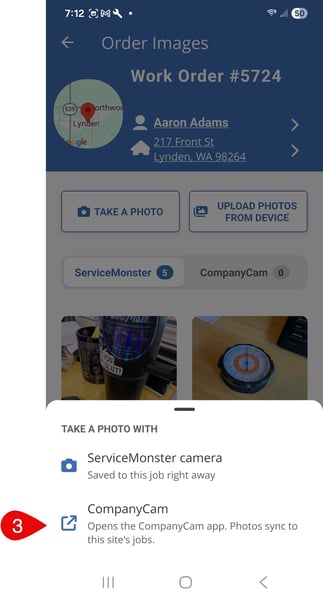
3. Select CompanyCam it will open the CompanyCam app on your phone.
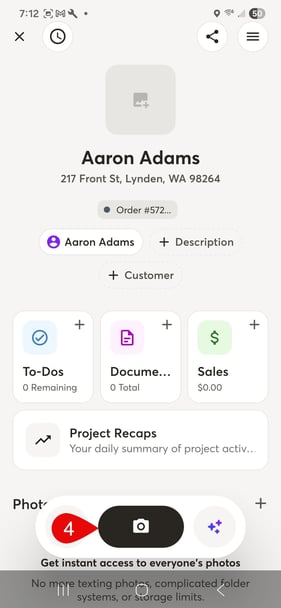
4. The CompanyCam app opens directly to the project for that site address. If the tech isn't logged in to CompanyCam, they will be asked to log in first. Take the photos in CompanyCam.
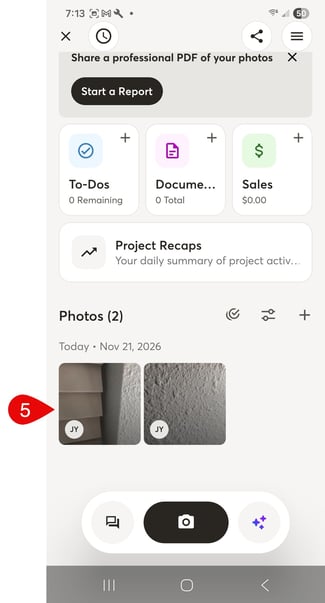
5. See the photos in CompanyCam
6. Return to ServiceMonster and tap on the CompanyCam tab. You can see there are 2 photos in the CompanyCam section.
7. All photos taken in CompanyCam will have a CompanyCam label on them
Viewing photos on an order
Images will be available in the Order's "Images" section in both the mobile & web versions. They will also be available on the Account's and Site's "Images" sections on the web version..
Taking a photo
Tap Take a Photo and choose where to capture it:
|
Option |
Where the photo lives |
Shows on |
|
ServiceMonster app |
ServiceMonster storage |
This order only |
|
CompanyCam app |
CompanyCam, then synced to ServiceMonster |
Every order at this site address |
CompanyCam also shows the initials of the user who took each photo.
Deleting photos
Delete a photo in the app it was taken in. CompanyCam deletions reach ServiceMonster within about 30 minutes.
|
Photo taken in |
Delete it in |
What happens in ServiceMonster |
|
CompanyCam |
CompanyCam |
Removed automatically, up to 30 minutes later |
|
ServiceMonster |
ServiceMonster |
Removed right away |
CompanyCam photos cannot be deleted from inside ServiceMonster, on Cloud or mobile. If a deleted photo still shows, wait up to 30 minutes and refresh.
Frequently asked questions
Why do I see the same CompanyCam photos on several orders? CompanyCam groups photos by site address. Every order at that address, past and future, shows all CompanyCam photos for the site. Photos taken in the ServiceMonster app stay on their own order.
Can I mark which CompanyCam photos belong to a specific visit? Not at this time. Tagging photos in CompanyCam does not link them to a single ServiceMonster order. If you need visit-specific photos, take them with the ServiceMonster camera.
Do photos taken in ServiceMonster go to CompanyCam? No. Photos only flow from CompanyCam into ServiceMonster.
How long does a photo take to show up? Usually 1 to 2 minutes, occasionally up to 5. Network conditions can affect it; the number of photos does not.
Who appears in the pairing list? All active ServiceMonster users, including office staff. Pair only those with a CompanyCam license.
Who do I pay for CompanyCam? CompanyCam directly. ServiceMonster does not bill for the CompanyCam subscription.
Is the regular ServiceMonster photo feature going away? No. It works exactly as before.
Troubleshooting
|
Symptom |
Check |
|
Order not showing as a CompanyCam project |
Is the order scheduled? Are the service site, shipping address and primary address filled in? Allow about a minute. |
|
New photos missing in ServiceMonster |
Wait up to 5 minutes. On mobile, tap Refresh or reopen Images. |
|
Photos not syncing for one tech |
Confirm the tech is paired on the Configurations screen and logged in to CompanyCam as that paired user. |
|
Tech missing from the pairing list |
Confirm they are an active user in Settings > Employees and Users. |
|
Open button asks for a login |
The tech isn't logged in to the CompanyCam app. Log in once and try again. |
|
Deleted CompanyCam photo still visible |
Allow up to 30 minutes, then refresh. |
|
Photos appear on an older order too |
Expected: CompanyCam photos show on every order at that site address. |