How To Create An FMS Campaign
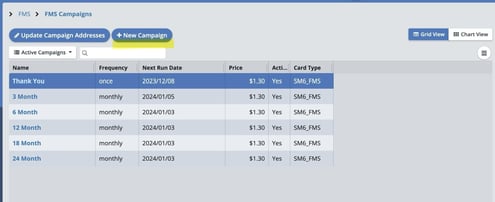
To create a new campaign, select the "+ New Campaign" button.
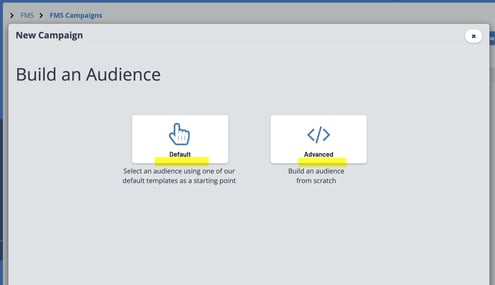
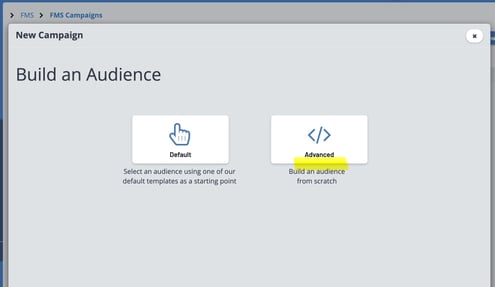
From here, you can choose to build a new campaign with help from our system by selecting the "Default" button, or build a new campaign on your own from scratch by selecting the "Advanced" button.
Default Campaign Templates
Let's cover the Default Campaign first. We've provided these default campaigns as a starting point for common reminders so you don't have to start completely from scratch.
Please select the "Default" button, then select which campaign template you wish to use.
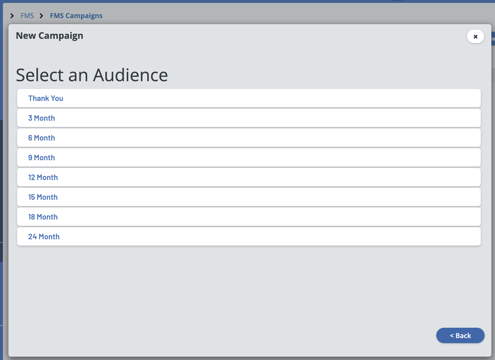
Confirm your selection and click "Done" when you are ready.
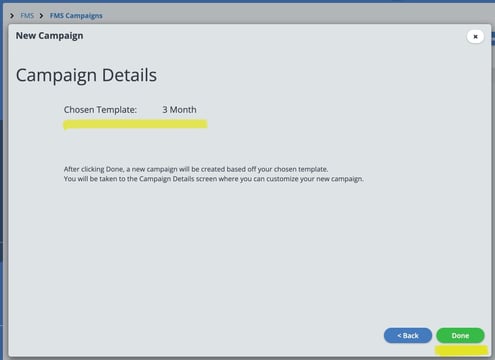
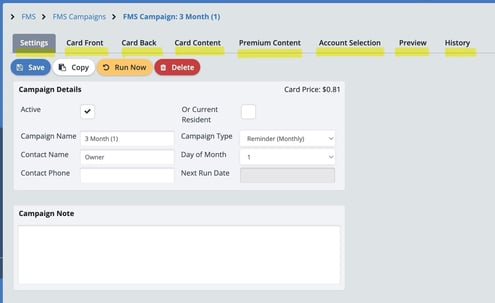
This is your Campaign Details screen where you can customize your new campaign. Go through all 8 tabs to make your card customization selections.
Please click here for detailed instruction on customizing your cards.
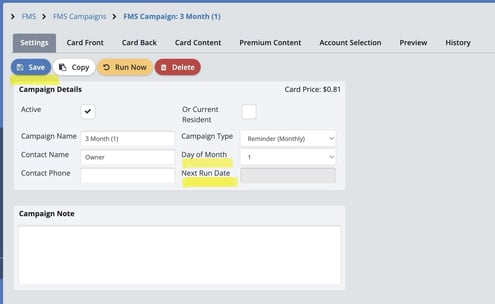
Be sure that your desired run date is correct, and then select "Save" when you are finished.
Your new FMS campaign is now complete!
Please click here for instructions on running your FMS card campaign.
The Advanced Campaign
Now let's cover the Advanced Campaign. Please select the "Advanced" button.
From the first tab, "Settings", give your campaign a Name and select the Campaign Type. Fields marked in red are required.
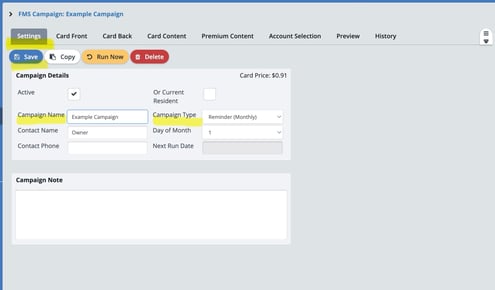
Go through all 8 tabs to make your card customization selections. Please select "Save" when you are finished.
Please click here for detailed instruction on customizing your cards.
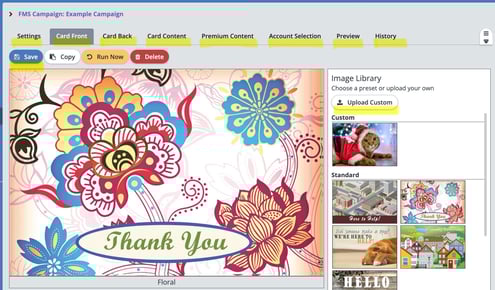
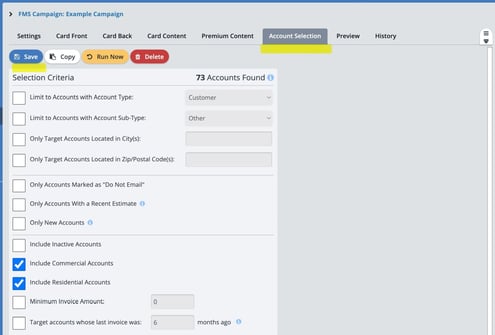
From the "Account Selection" tab, toggle on or off the filters you wish to use to reach your desired audience. Please select "Save" when you are finished.
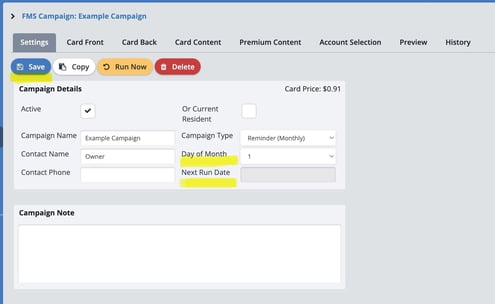
Be sure that your desired run date is correct, and then select "Save" when you are finished.
Your new FMS campaign is now complete!
Please click here for instructions on running your FMS card campaign.
How To Deactivate An FMS Campaign
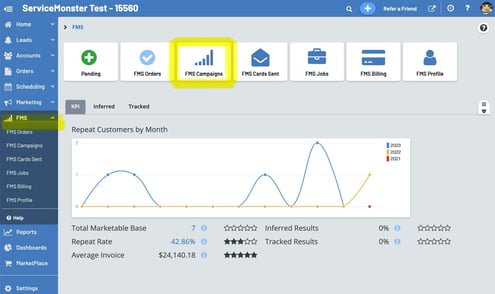
From the Main Menu, select the "FMS" tab, then select the "FMS Campaigns" icon.
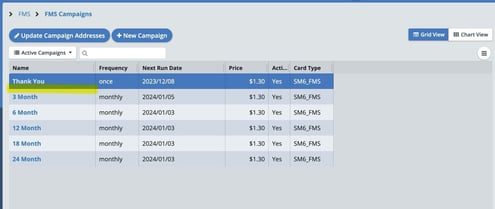
Here you can see a list of all your FMS campaigns. To deactivate a campaign, first select the campaign name.
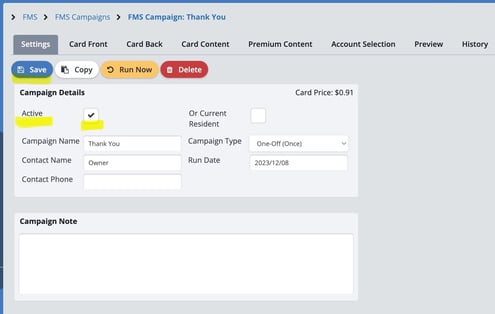
Under Campaign Details, de-select the "Active" box to deactivate the campaign, then select "Save".
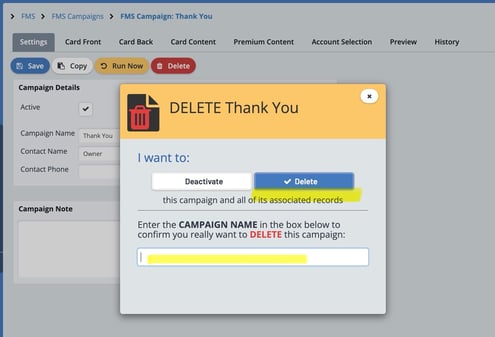
If you wish to fully delete the campaign instead, please select the red "Delete" button.
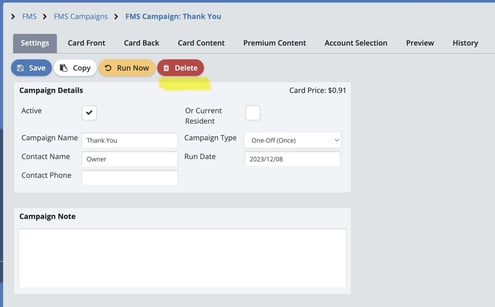
Next, confirm in the new window that you really want to delete the campaign by selecting the "Delete" button and typing in the name of the campaign.
Then select the red "Delete" button that appears one final time to fully delete the campaign.