
Creating a proposal using Quick Add streamlines the process so you can quickly send detailed, customizable proposals to your customers. Follow these steps to enter customer details, add requested and optional services, and send the proposal—all without leaving the Quick Add panel.
Step 1: Open Quick Add.
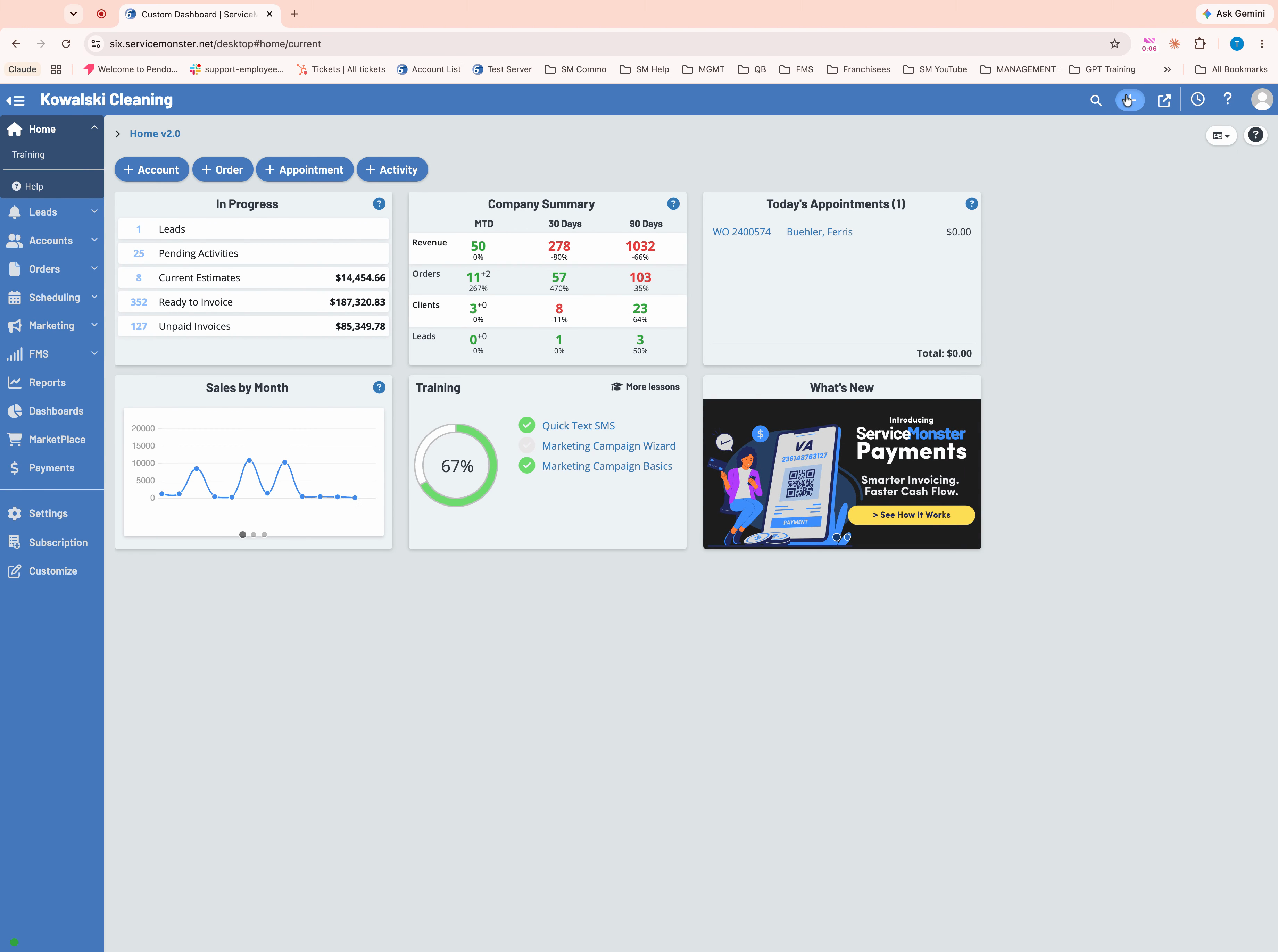
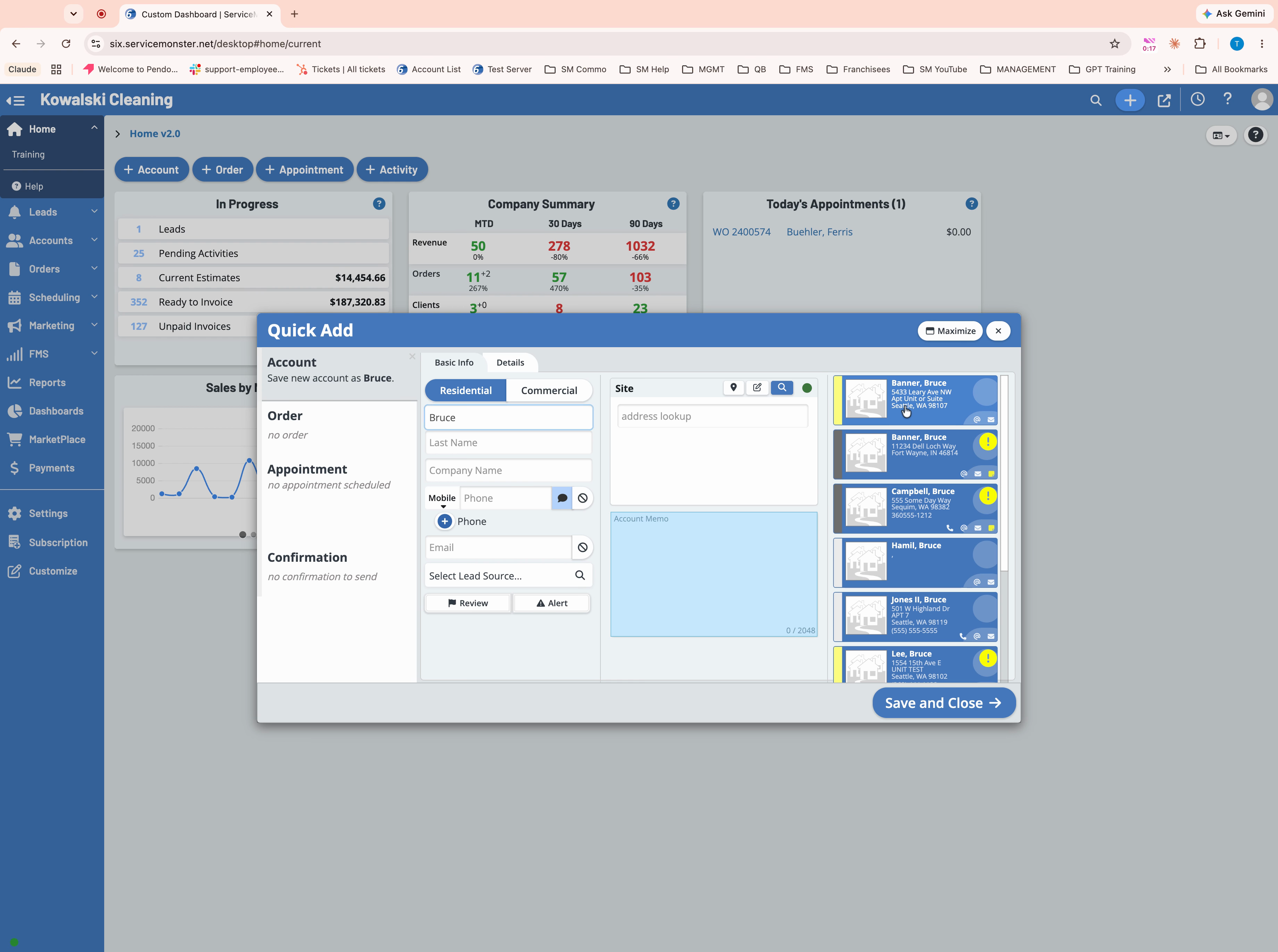
Step 2: Search for an existing customer, or enter information to create a new customer if there’s no match.
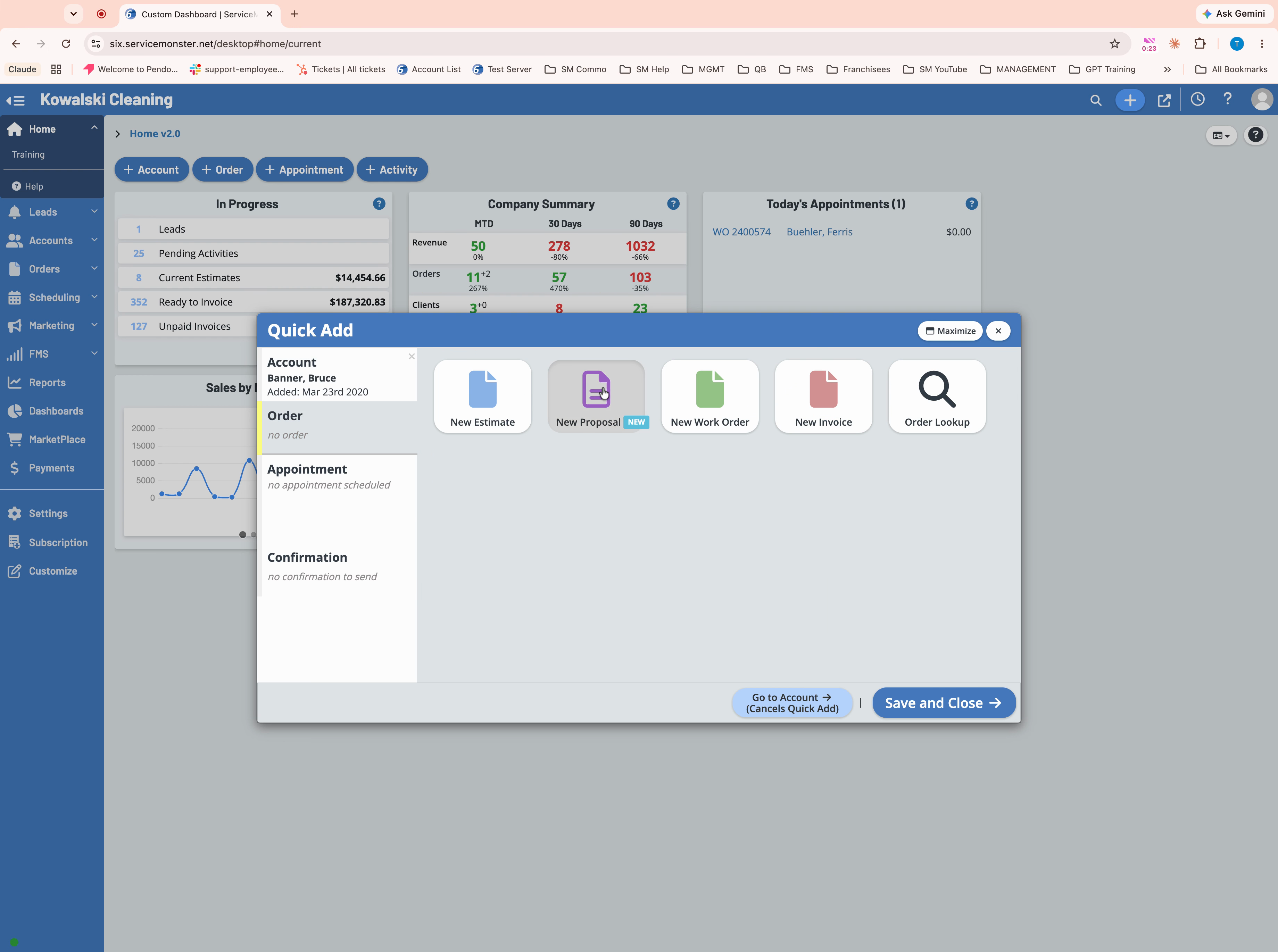
Step 3: Go to Step 2: Order and select New Proposal.
Step 4: Add the services your customer is requesting.
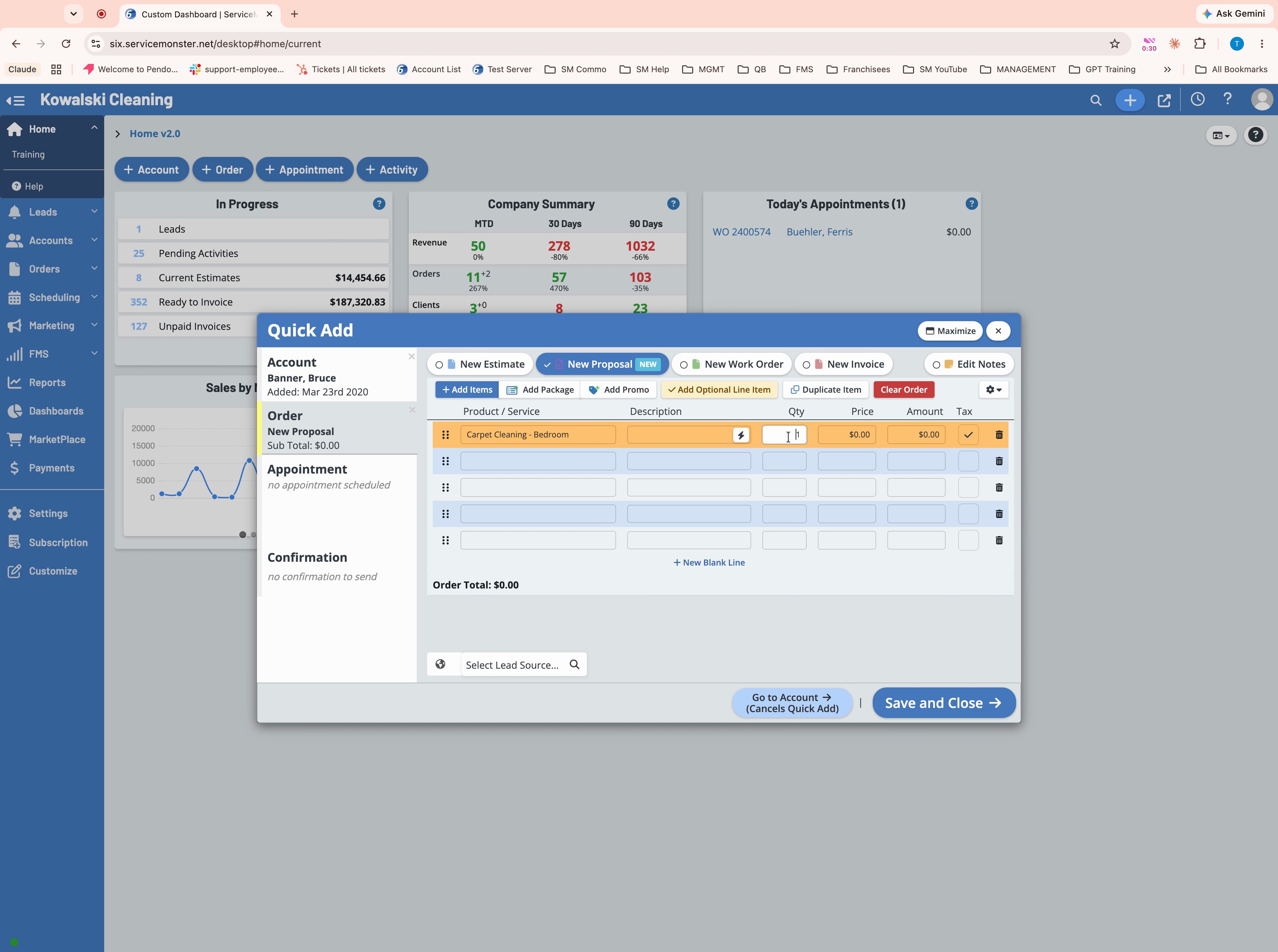
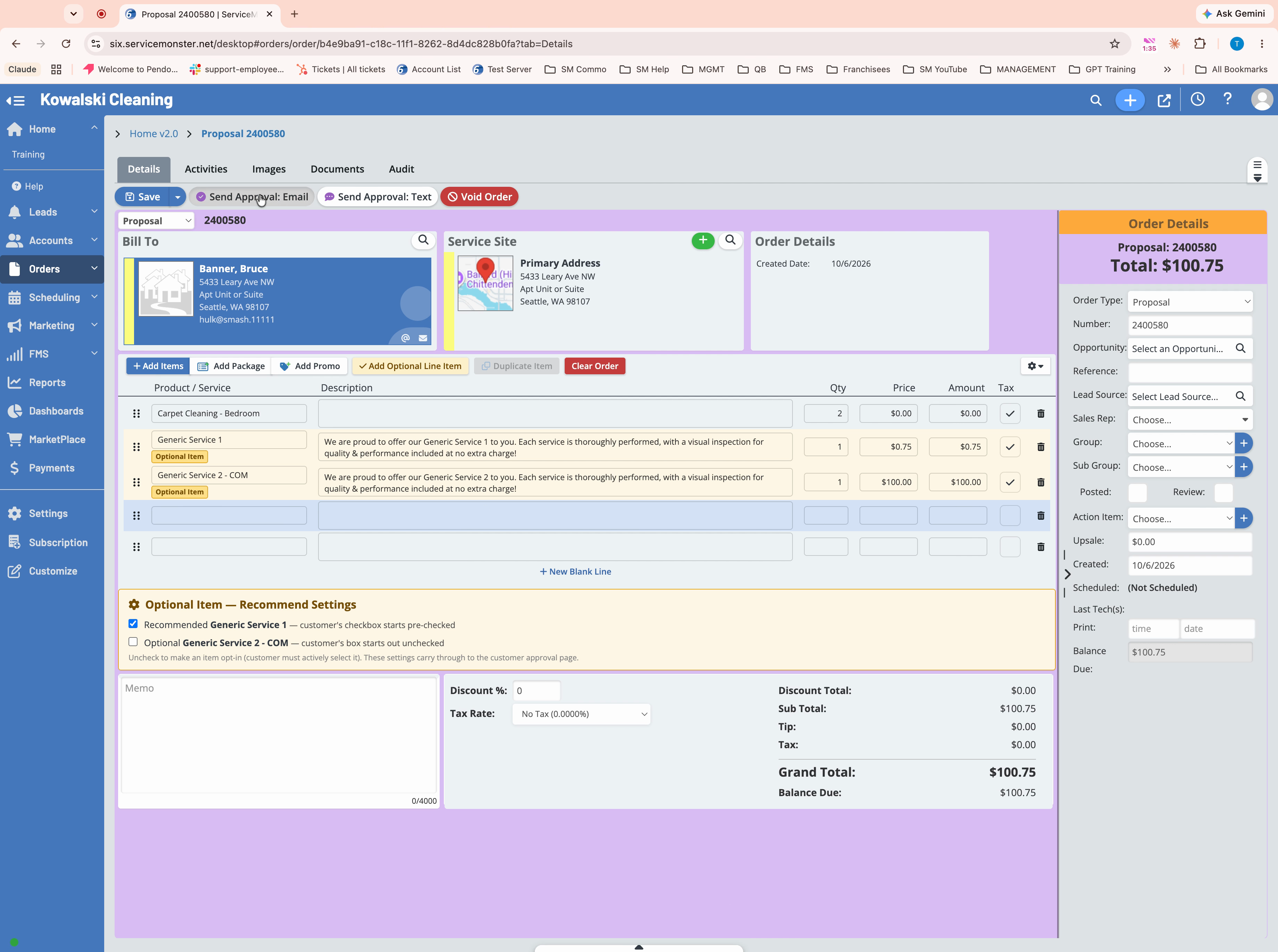
Step 5: To include optional services, add them to the list.
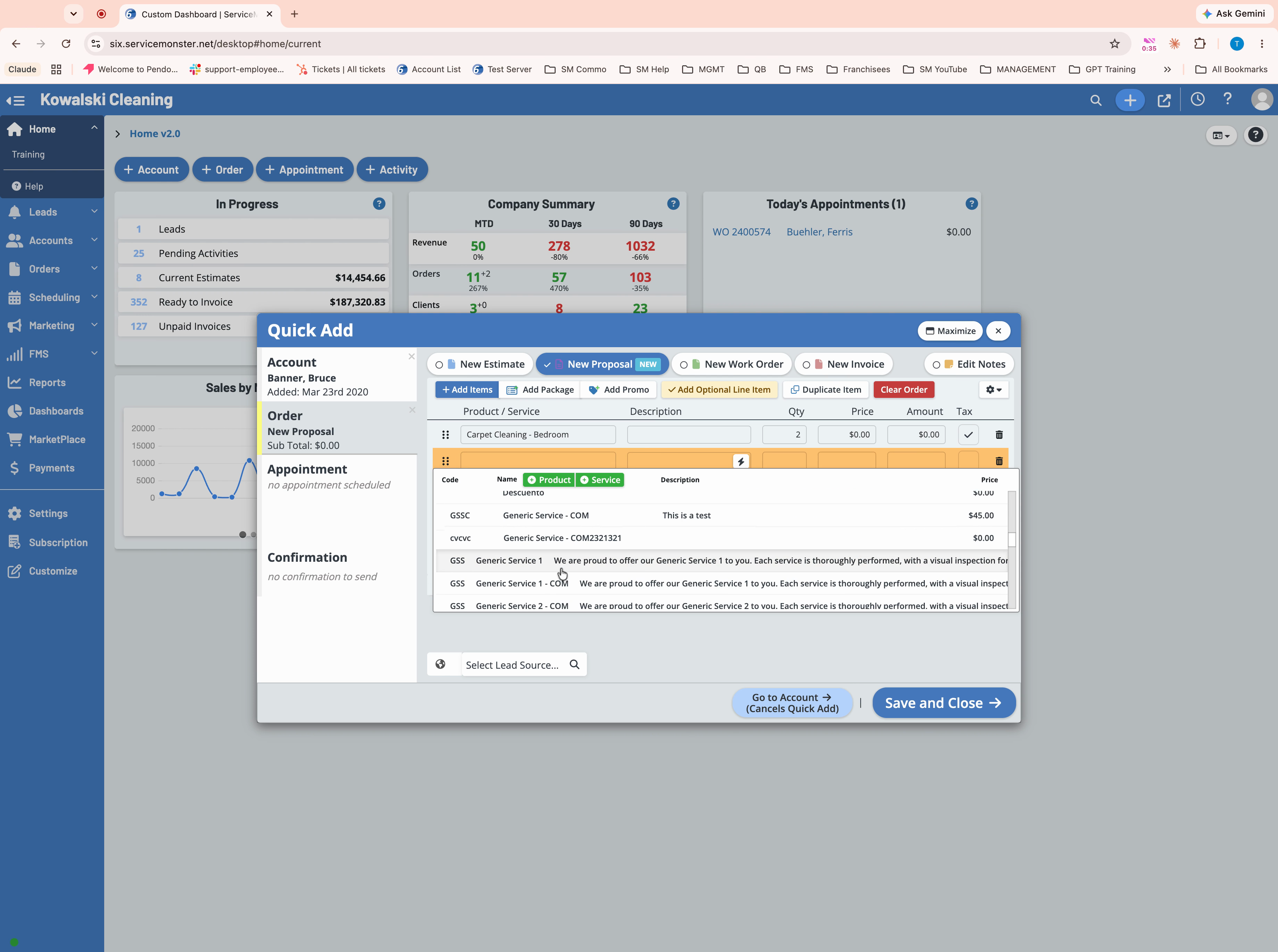
Step 6: Mark any service as Optional by clicking the option and choosing Optional.
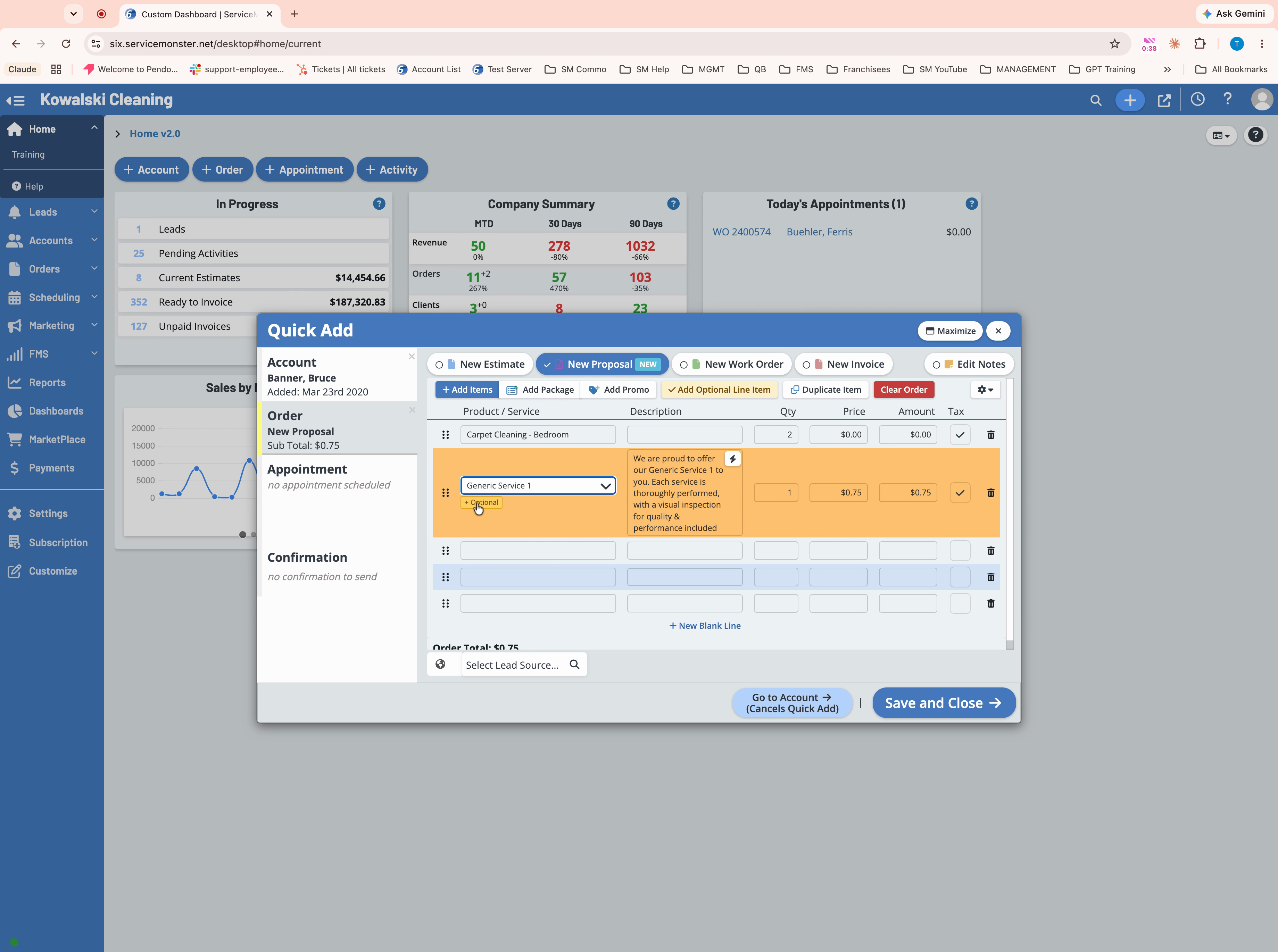
Step 7: You can make optional services Recommended by checking the box at the bottom. Recommended services appear pre-checked for the customer when they view the proposal.
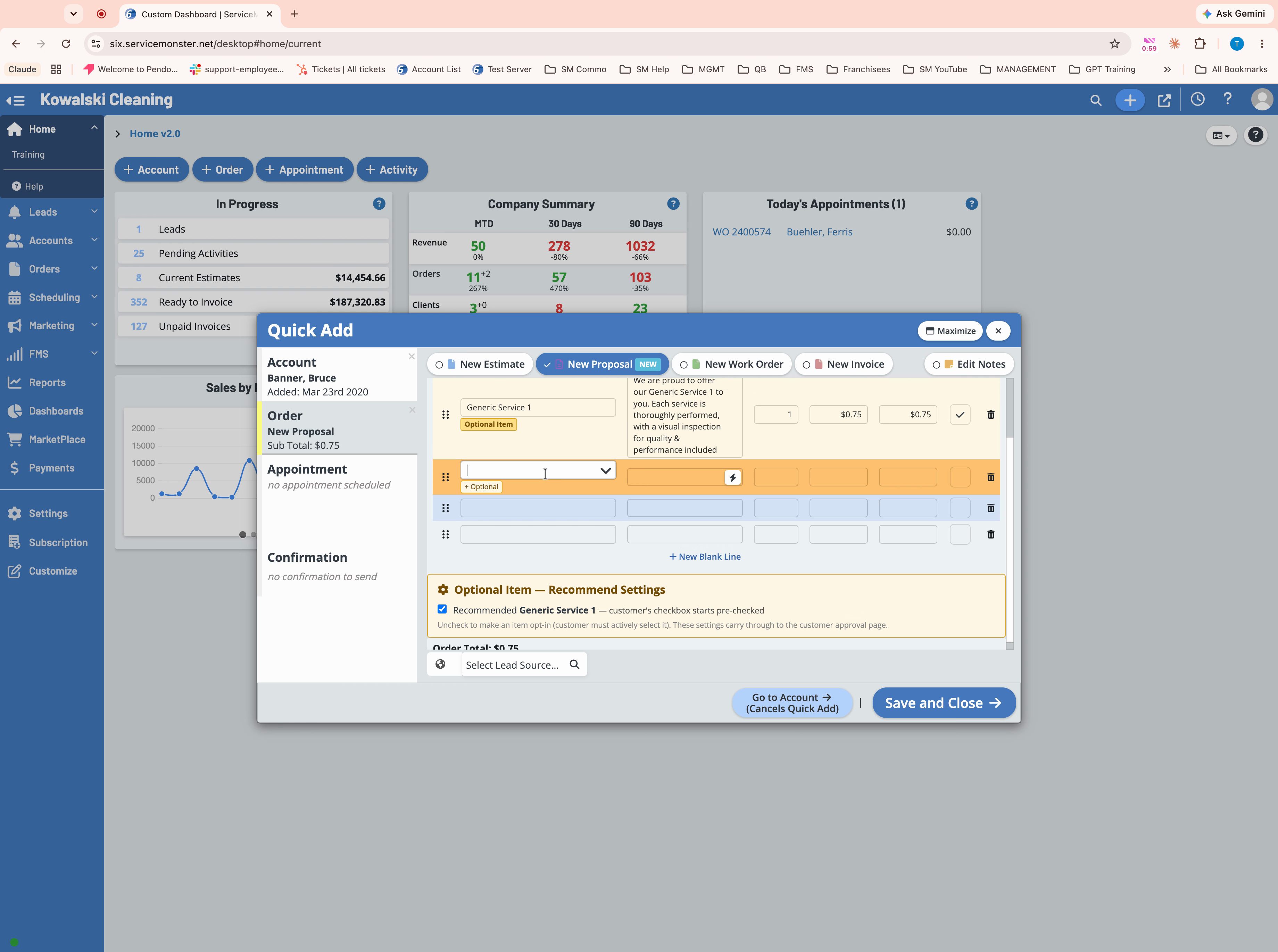
Step 8: Review the requested and optional (or recommended) services. Skip to Save and Close—usually you won’t need to add an appointment at this stage.
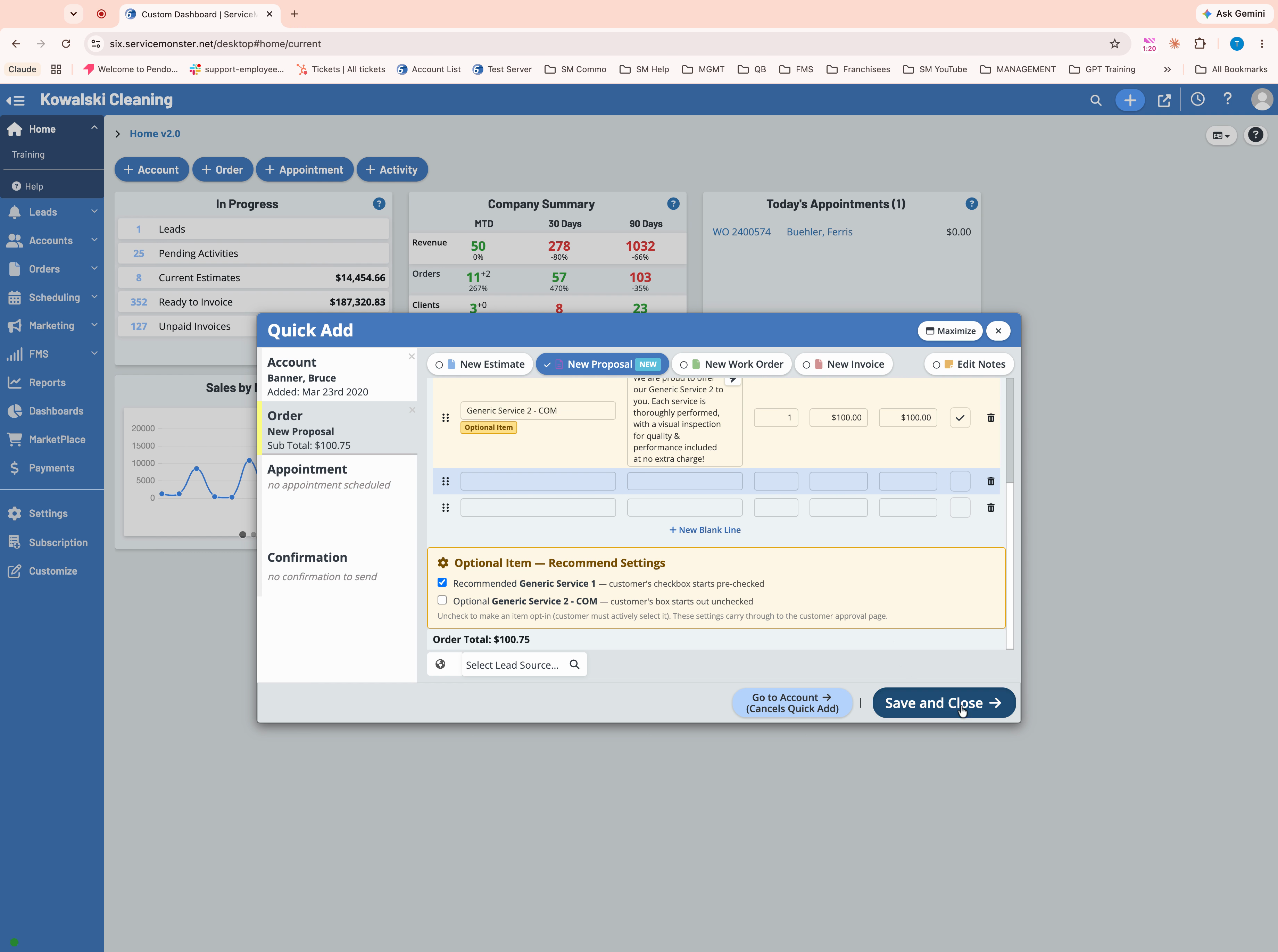
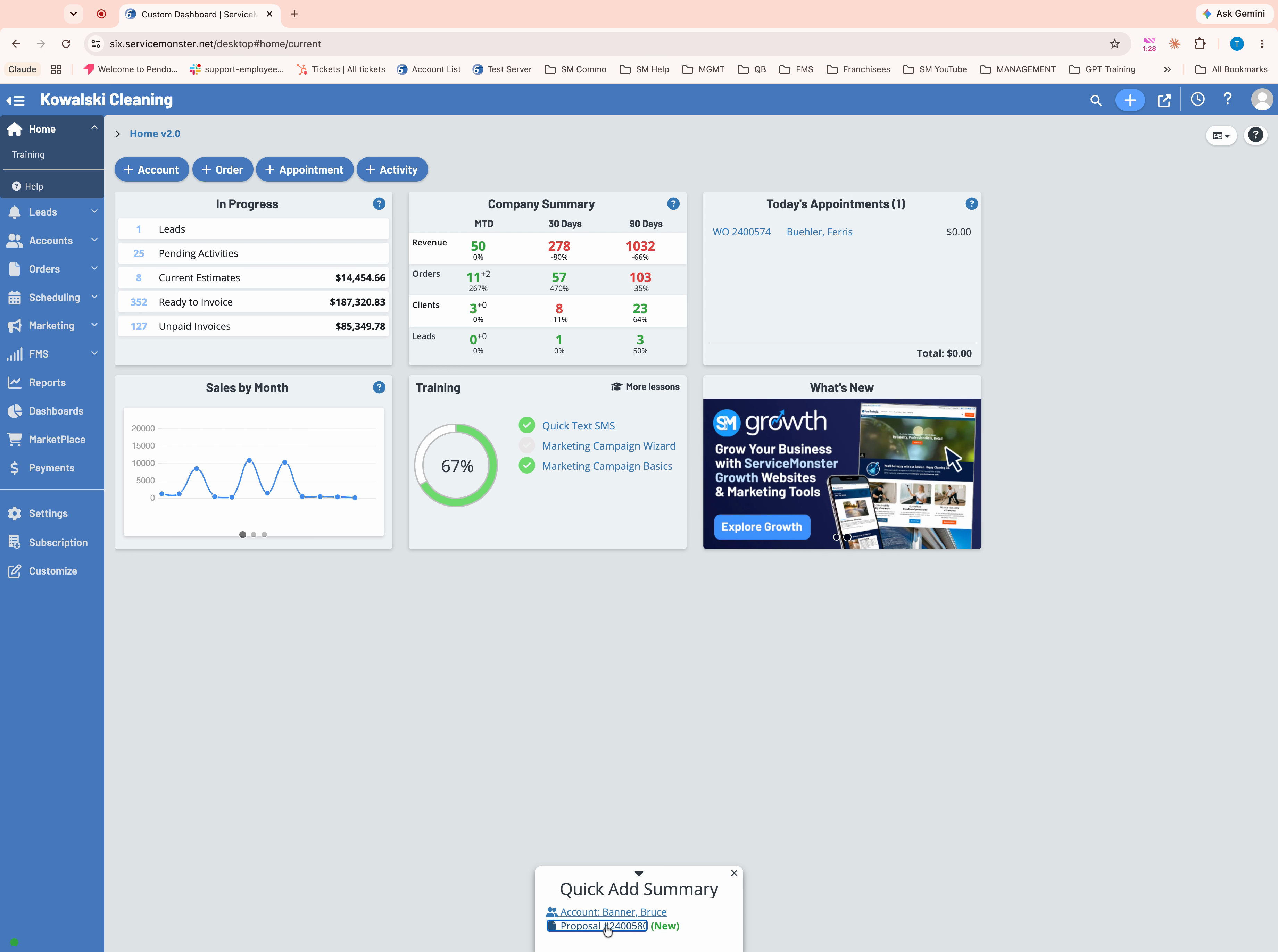
Step 9: After saving, click on the proposal document number to open your proposal.
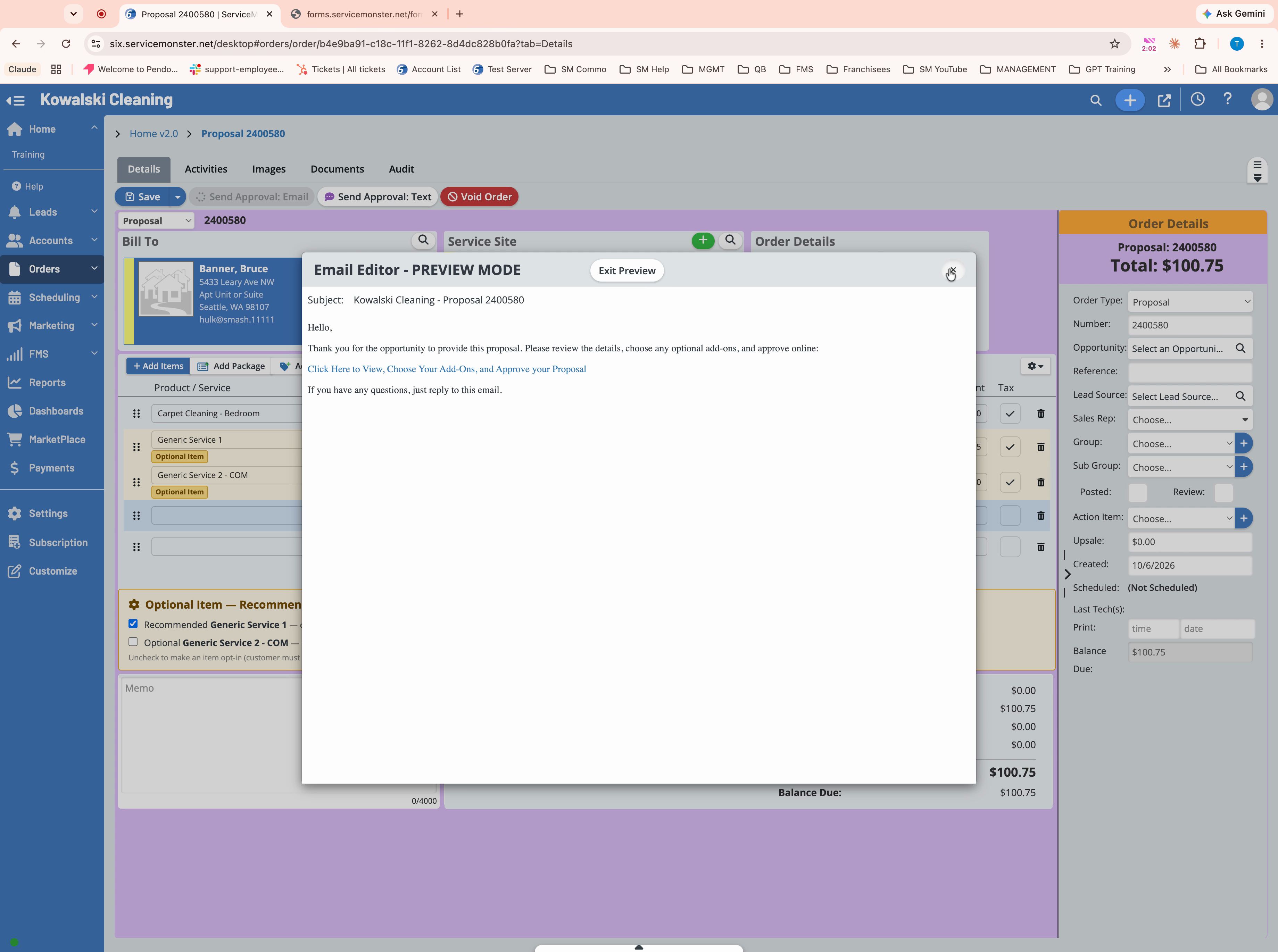
Step 10: Use Send Email or Text to deliver the proposal to your customer.
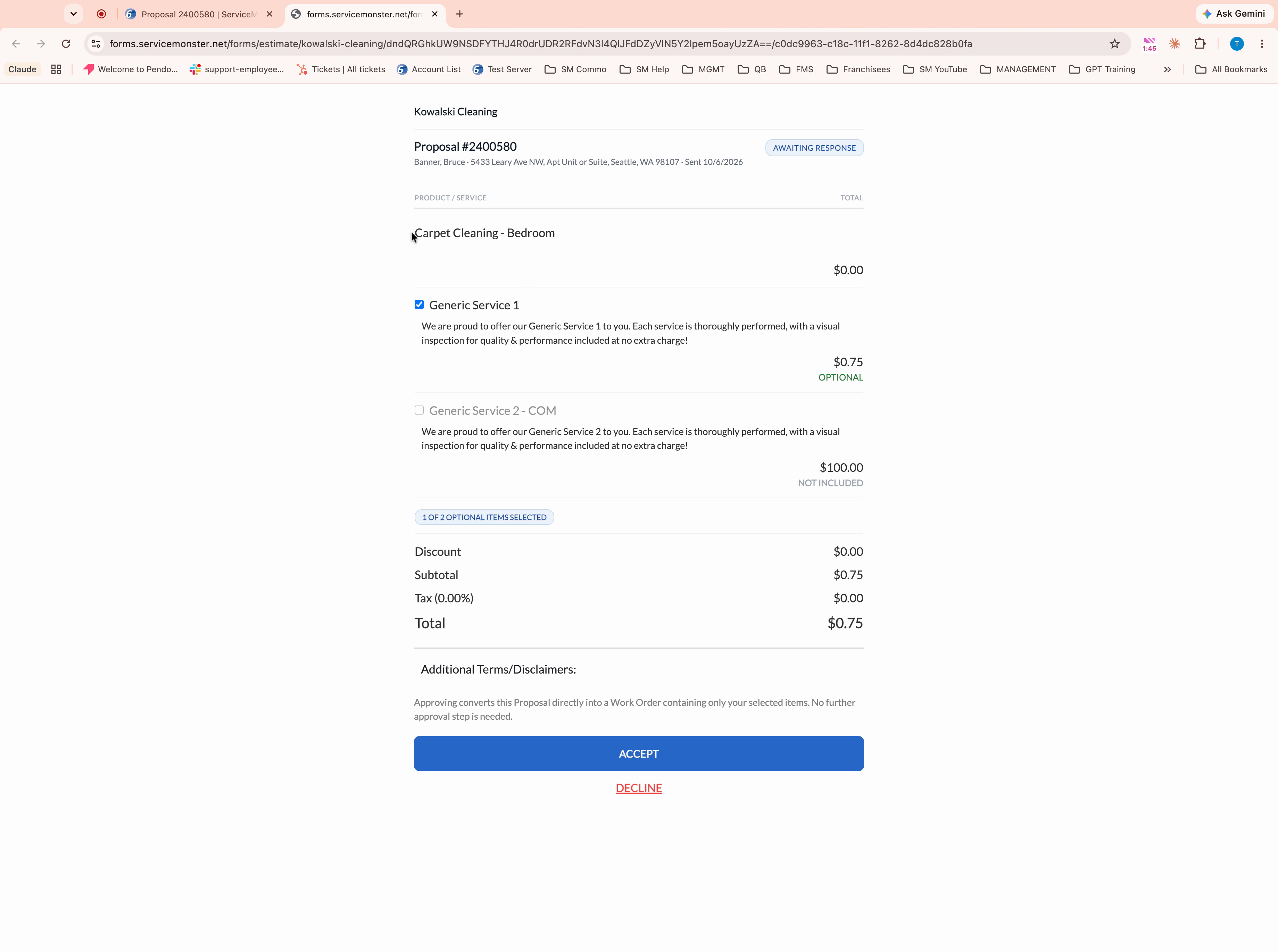
Step 11: The customer receives the proposal and sees both requested and optional services. They fill in their details and submit.
Step 12: After they approve, ServiceMonster escalates the proposal to a work order and marks it as approved.
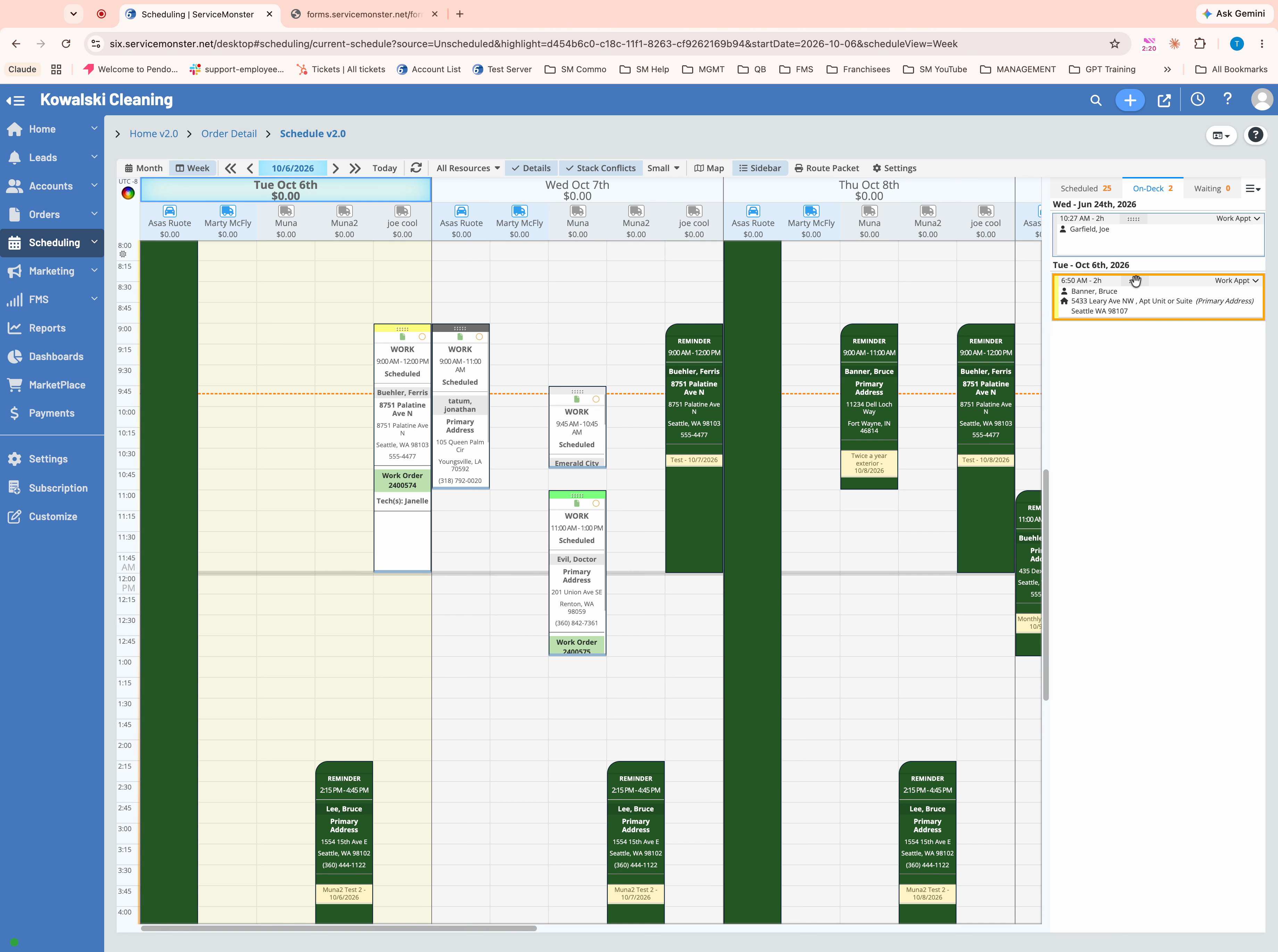
Step 13: Click Schedule at the top of the order, then use Quick Add to drag and drop the job to the desired service date.
Proposals through Quick Add make it easy to capture customer choices and speed up your sales workflow. If you run into issues or have questions, call 888-901-3300 extension 2 for support.