"Why not contact all my clients?"
Clients may ask to not be contacted via a certain communication like texting or emails, or perhaps they no longer wish to receive FMS cards. It's important to disable the client's requested type in that client's account, and to also include filters for "Do Not Contact" in any marketing campaigns you create to exclude those accounts.
For Desktop
To mark an account as "do not contact", first go to your "Account List" under the "Accounts" tab in the Main Menu. Find the account using the search box. From there, open the account you wish to change and select the "Details" tab. To the right of the client's phone number you will see a texting icon and a circle with a line through it. These can be toggled on or off. By default, they are enabled. Red icons next to a communication type indicates that method is disabled.
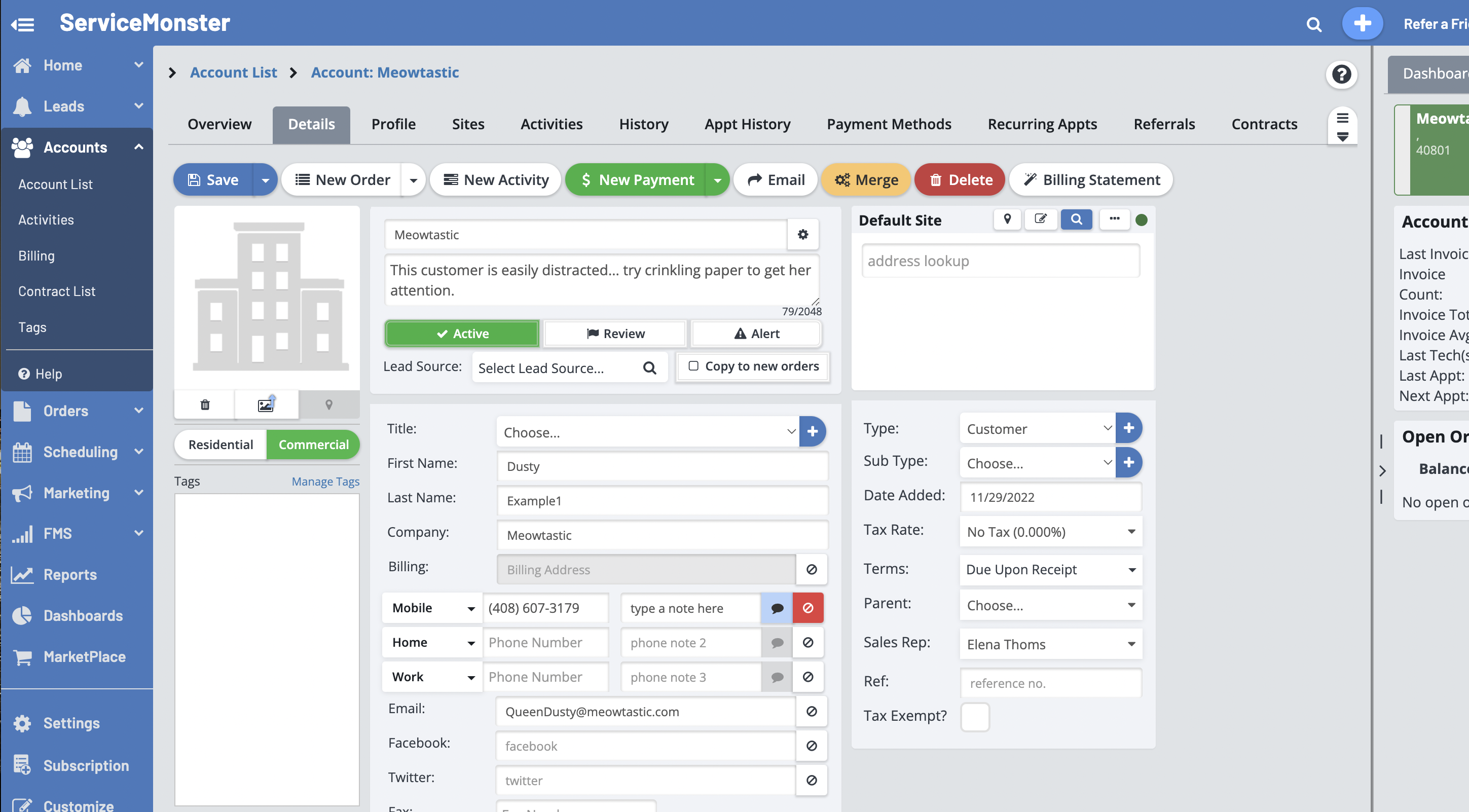
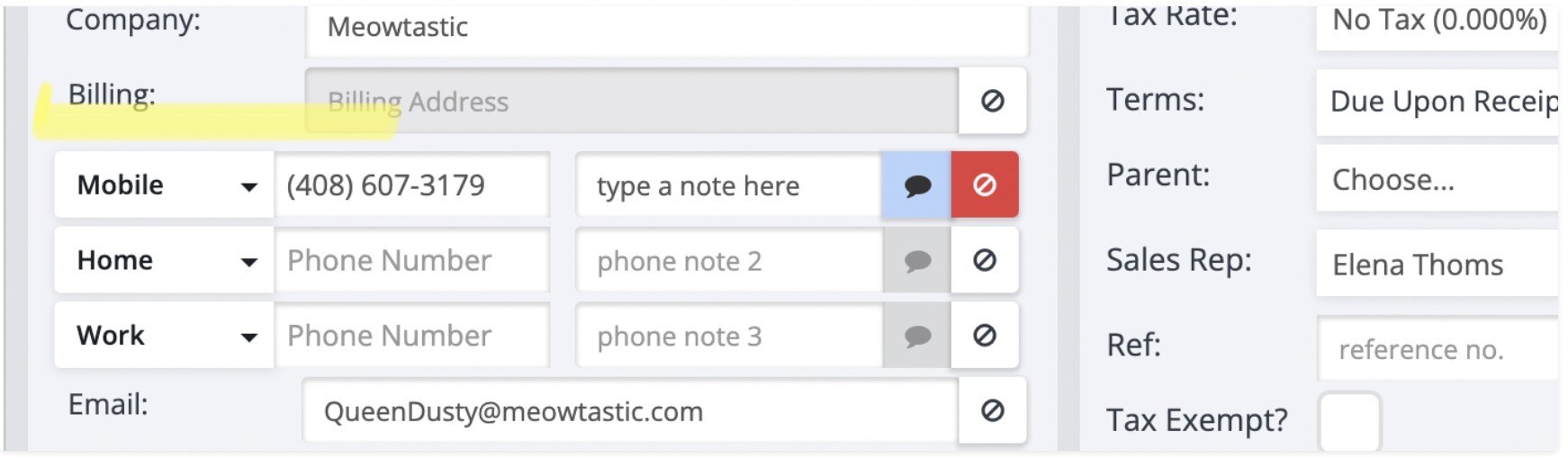
Below you can see the texting icon is turned on in blue, and the "do not call" icon is turned off in red. This indicates that yes, you may text this number but please do not call. You can come back and change this at any time. If you wish to turn off Marketing by mail, you may do so by clicking the circle with the line through it besides "Billing". This button will turn red, indicating do not mail. When finished, please remember to click "Save" in the upper left to save your changes.
For Mobile
On the mobile app, we can disable texting.
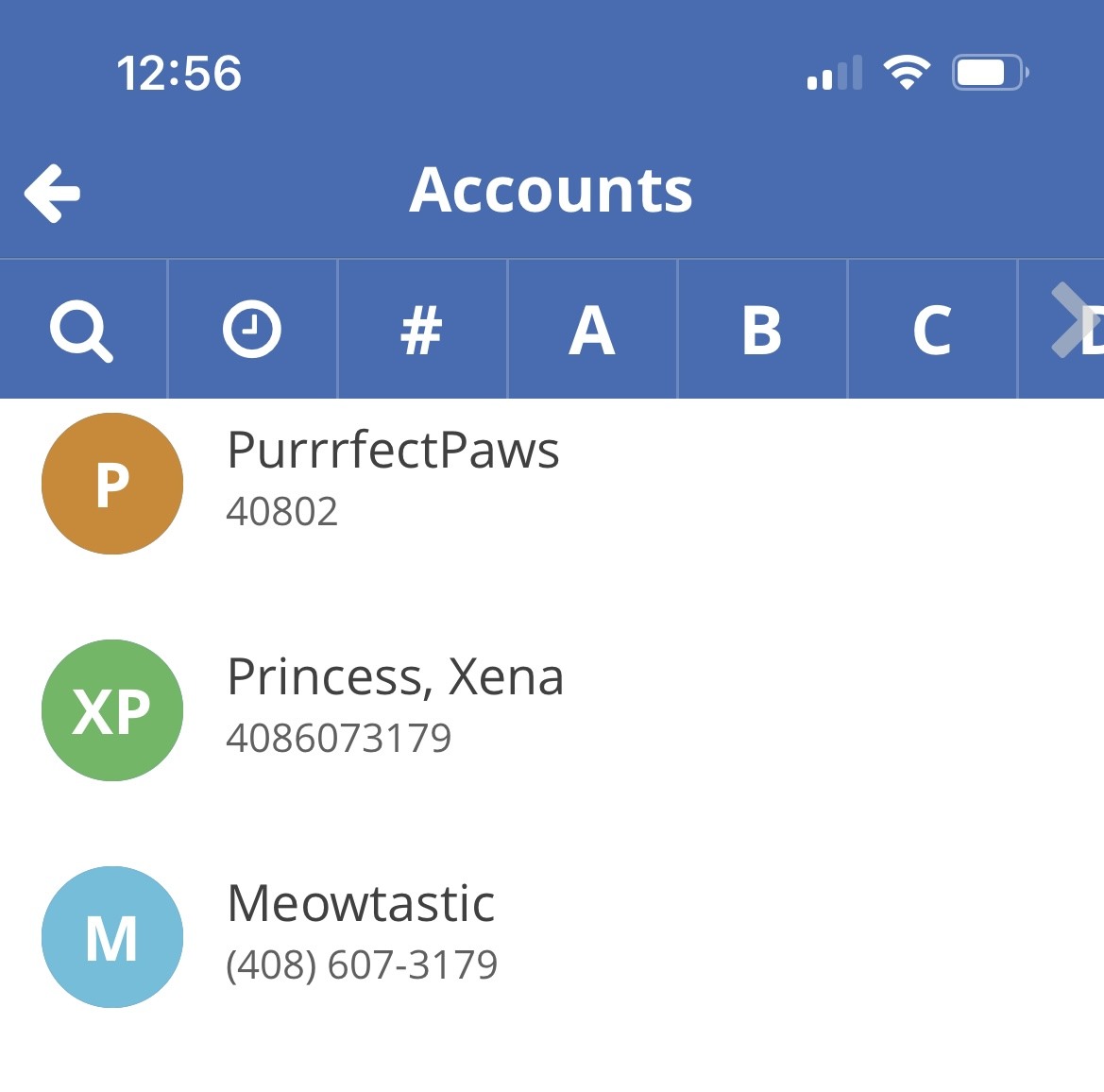
Click on "Accounts" from the Home Page to see a list of your accounts.
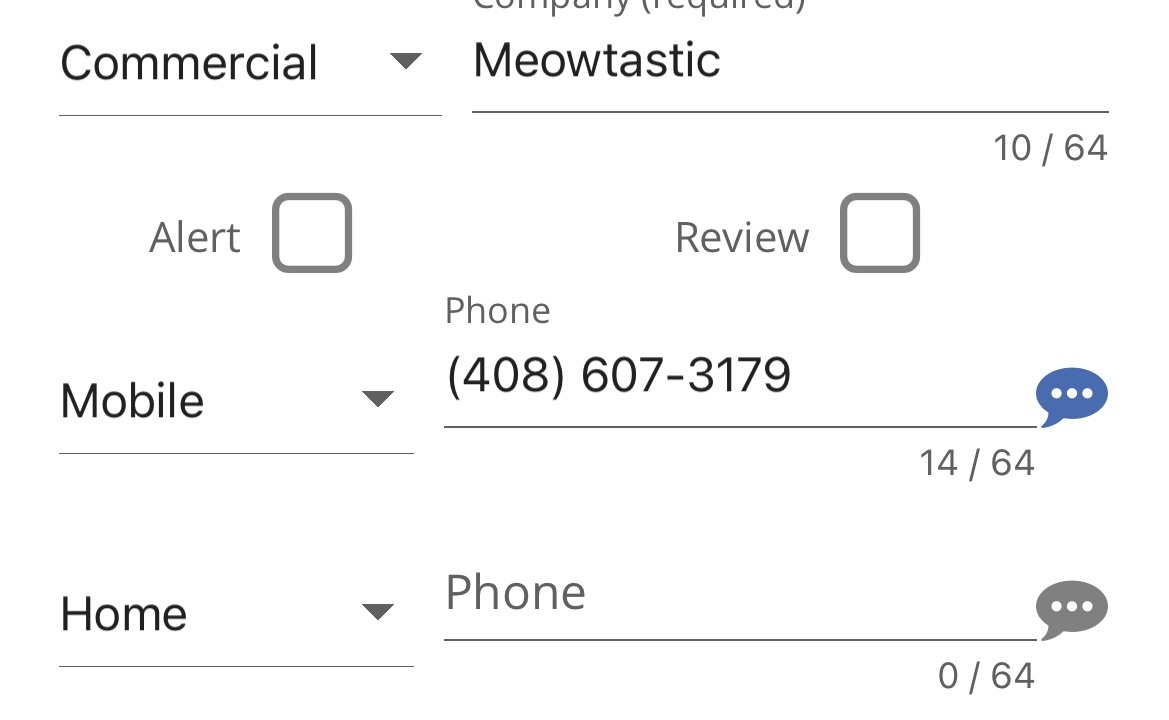
From there, open the account you wish to change and select the pencil icon in the upper right corner to edit. To the right of the client's phone number you will see a texting icon. This can be toggled on or off.
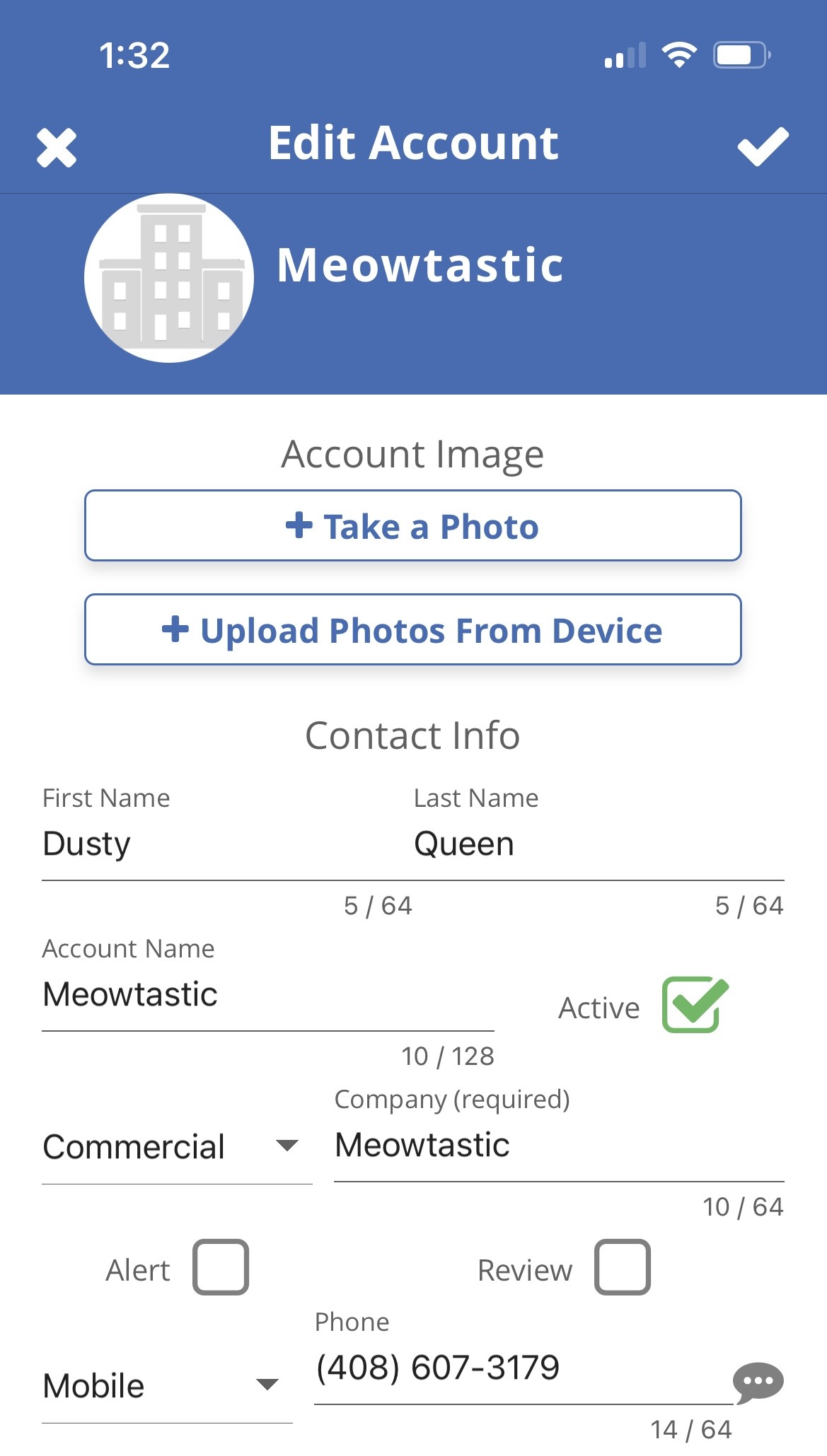
Below you can see the texting icon is turned on in blue. This indicates that yes, you may text this number. You can come back and change this at any time. When finished, please remember to click the checkmark in the upper right corner to Save your changes.