
Welcome to the ServiceMaster customer portal, powered by Service Monster Pay. This guide walks you through setting up and using the portal, so your customers can easily manage estimates, payments, appointments, and more. Let’s get started!
Send Portal Invitations with a Personalized Email Template
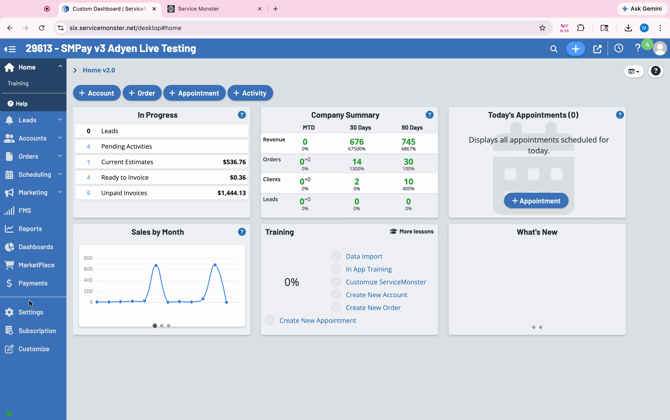
Step 1: Go to Settings in your ServiceMaster portal.
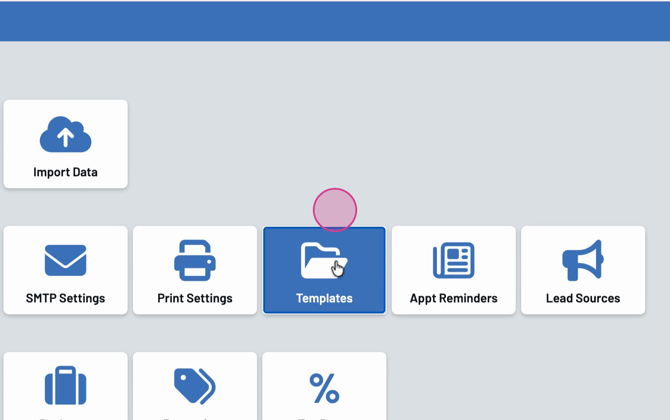
Step 2: Select Templates from the menu.
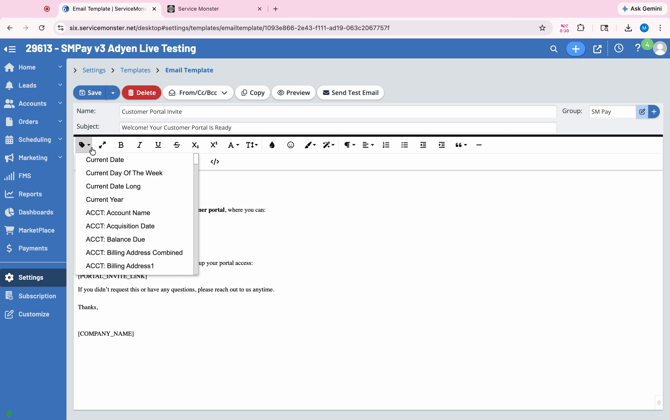
Step 3: Click to create a new Email Template.
Step 4: Draft your invitation email. Use the personalization drop-downs to add fields like Account First Name. This will fill in each customer’s name automatically.
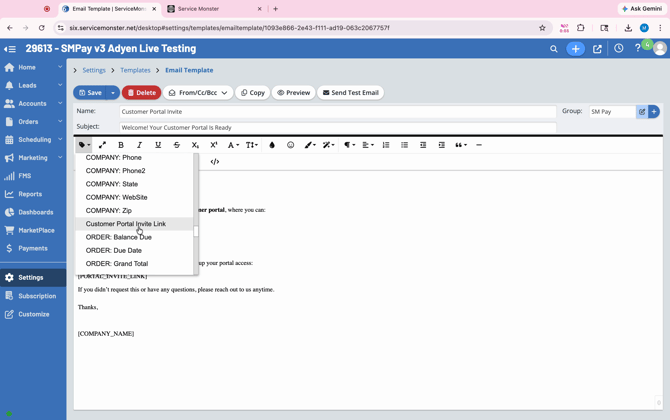
Step 5: Include important information such as recent appointments or business updates if needed. Be sure to insert the Customer Portal Invite Link using the template options.
Step 6: Save your template. When you send this invitation, only the customer with that email address can use the link to register.
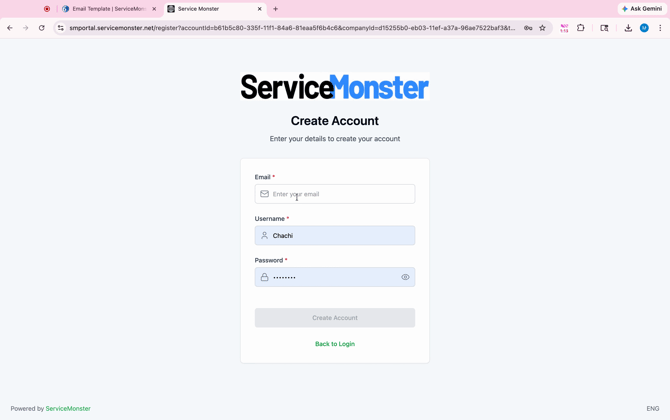
Once customers receive the invite, they’ll be prompted to enter their email, create a username, and set a password.
Explore the Customer Portal Features
Step 1: After signing up, customers can log in and access the portal.
Step 2: To request service, select Create New Request at the top of the page. Customers fill in their service needs and suggest preferred dates and times. This is not booking a live appointment currently, but creating email notification with their preferences. (Real-time live booking will be available in a future update.)
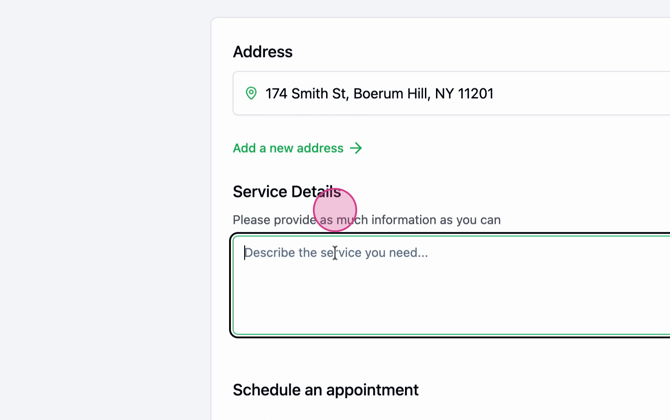
Step 3: Submitting a request notifies you via email, so you can create an estimate for the customer in Service Monster.
Step 4: When a client creates an estimate, it appears under Quotes in the customer’s portal. Customers can view, download, and approve or request changes to their estimates.
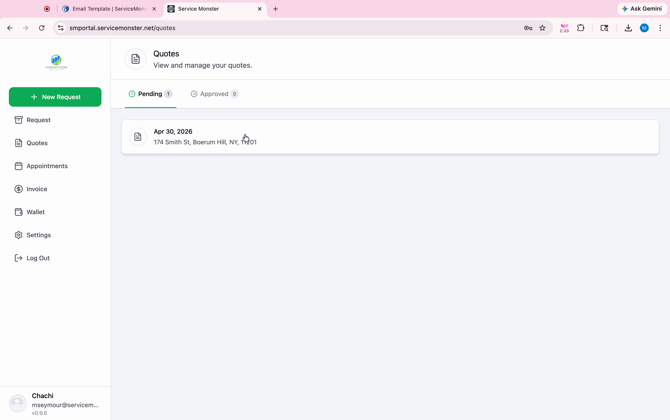
Step 5: Under Appointments, customers see all scheduled upcoming services.
Step 6: Scroll to Invoices to display open balances. Customers can pay invoices in full or partially, depending on what they owe.
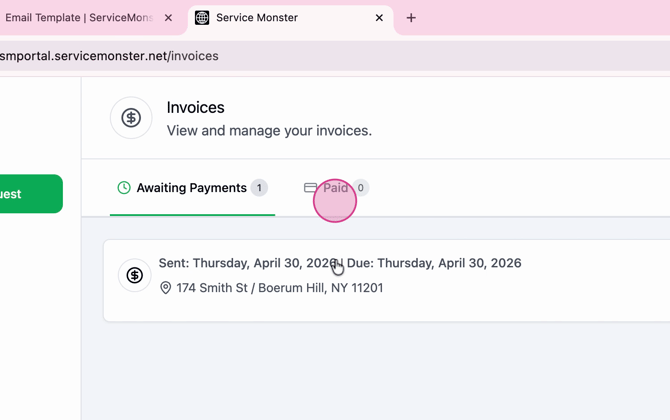
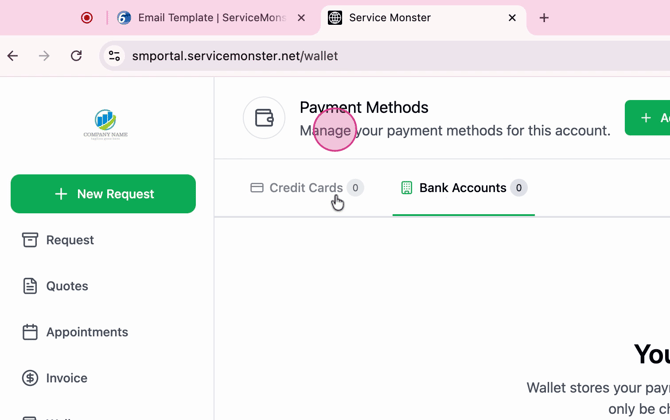
Step 7: The Wallet section lets customers store their preferred payment methods, like credit cards or bank account details, for future payments.
Step 8: In Settings, customers can update their personal details.
Step 9: When finished, use the Log Out button to securely exit the portal.
The ServiceMaster portal gives your customers more flexibility to manage their estimates, schedule appointments, and control payments at their convenience. If any questions come up, just contact the support team at 888-901-3300 ext. 2.