Before proceeding, updating your banking details may delay funding due to re-verification steps that are needed prior to payouts being available.
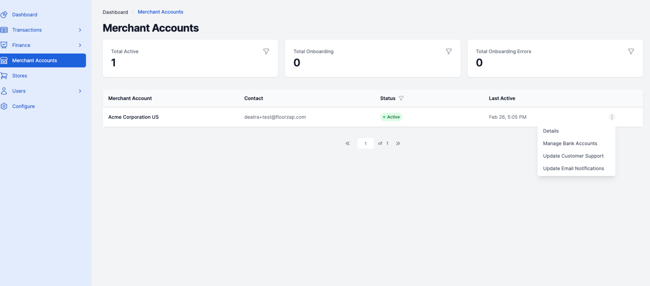
1. Login to the merchant portal at payments.servicemonster.net and select Merchant Accounts on the left navigation bar.
2. Click on the 3 dots on the right hand of your screen for your merchant account. In the dropdown, locate and click Manage Bank Accounts.
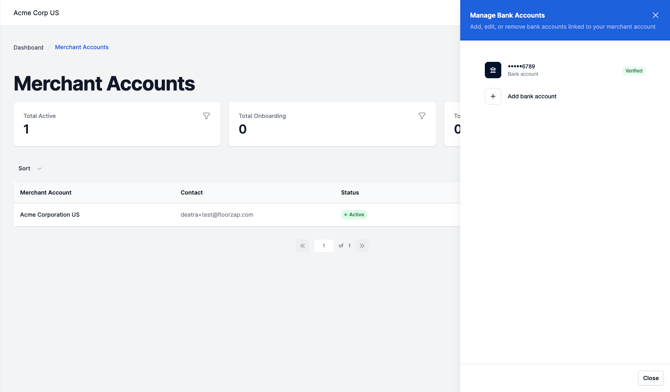
3. Click + Add bank account
4. A pop-up will show on your screen to choose the verification method.
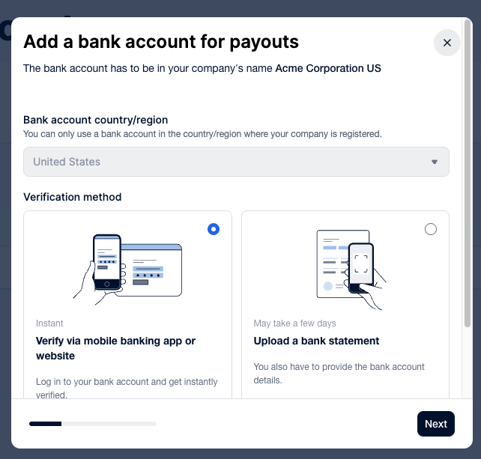
5. We recommend the instant verification via Plaid for faster verification. If Plaid does not partner with your bank (it does not show in the search) you will have to choose the option to verify with a bank document.
Why does my account number look different when instantly verifying via Plaid?
When a merchant connects their bank account using Plaid, some financial institutions (such as Chase Bank) use a secure, direct API connection that provides Plaid with a Virtual Account Number (VAN) or Tokenized Account Number (TAN) instead of the actual bank account number. Think of it like a gift card that points to your real bank account behind the scenes -- the number on the card isn't your actual account number, but it still routes transactions to the right place.
As a result, the last 4 digits displayed in the merchant account after connecting may not match what the merchant sees on their bank statement or card. This is expected behavior and does not indicate an error with the bank account on file.
Importantly, this does not affect payouts or any other money movement. Funds will still be deposited correctly, even if the account number displayed looks unfamiliar.
6. Once you have completed these steps and your bank account is shows as verified, please delete your old bank account that was used.
If you choose to verify via uploading a bank statement, please allow 24-48 business hours for your accounts verification status to be available.
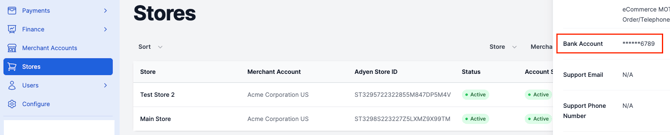
7. You can verify the bank account in use by selecting Stores and clicking on the store, scrolling down on the right information bar until you see the bank account info.