How to Use ServiceMonster Two-Way Texting
ServiceMonster’s two-way texting makes it easy to communicate quickly and efficiently with your clients. From managing default messages to setting up scheduled and automated replies, stay in control of your customer communications—day and night.
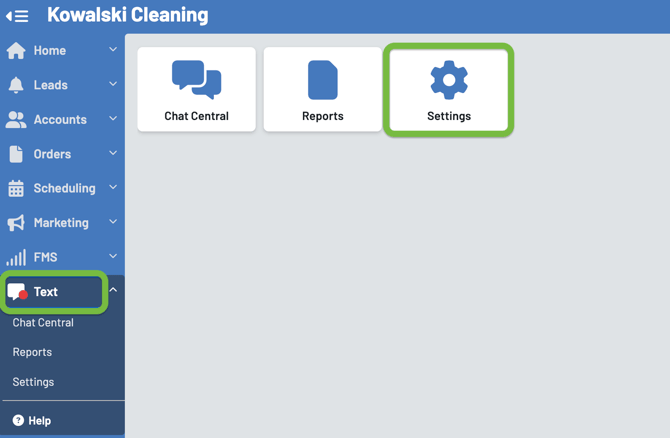
Open the Text , then select Settings in ServiceMonster.
Review the General overview to check how many texts you’ve used, your remaining texts, and what’s included in your plan.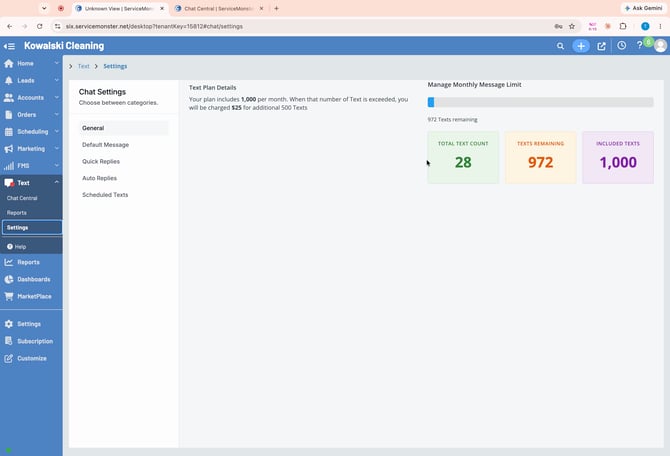
Customize Default Opt-Out Message (Optional)
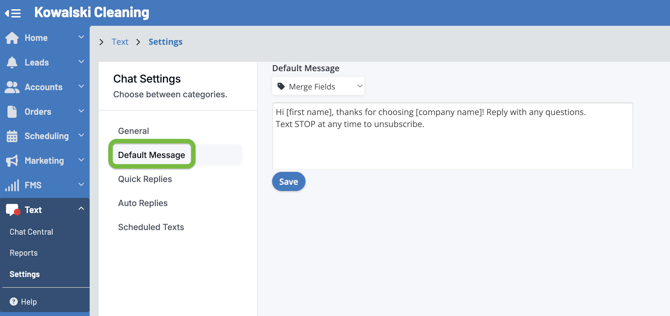
We have a preconfigured “opt-out” message that is sent to your text customers letting them know they can stop text messaging. You have the option to change the “opt-out” default message if you’d like.
Create and Use Quick Replies
Quick replies help you respond faster to common questions. These are text templates you create that are unique to the 2-way texting system.
Click Plus SMS Template to create a new quick reply.
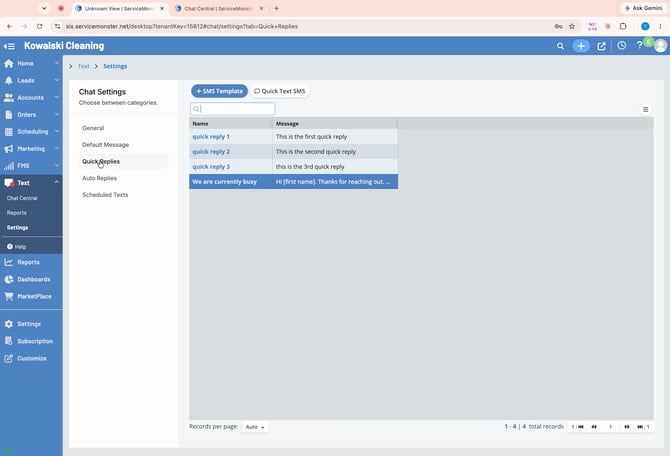
Enter a name, then type your message below. Use the Merge Fields dropdown to enter the customer’s name or your business name automatically when it sends. 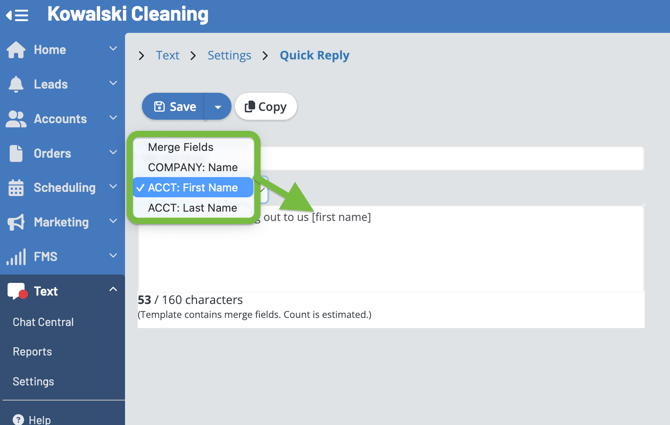
Set Up Auto Replies
Auto replies send preprogrammed messages based on your business hours or specific events. You can only have one option enabled – either Office Hours or a General Auto Reply at the bottom.
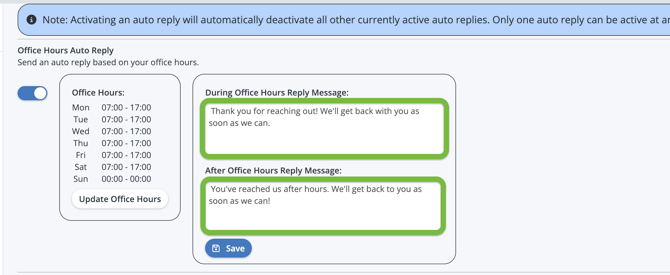
For Office Hours auto replies, click the slider to enable the feature, then click Update Office Hours to set your times. 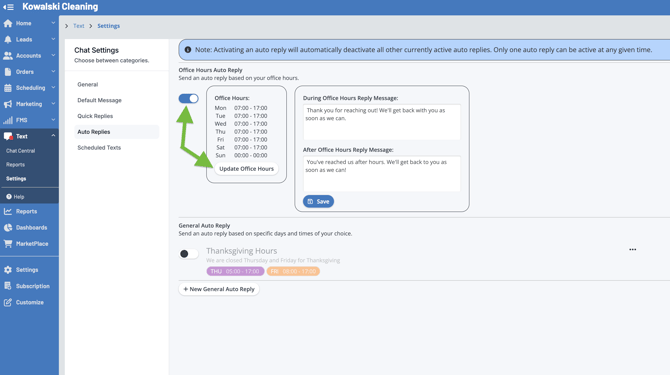
Set the times you are open. If you’re closed on a given day such as Sunday, set your hours from 12am to 12am. 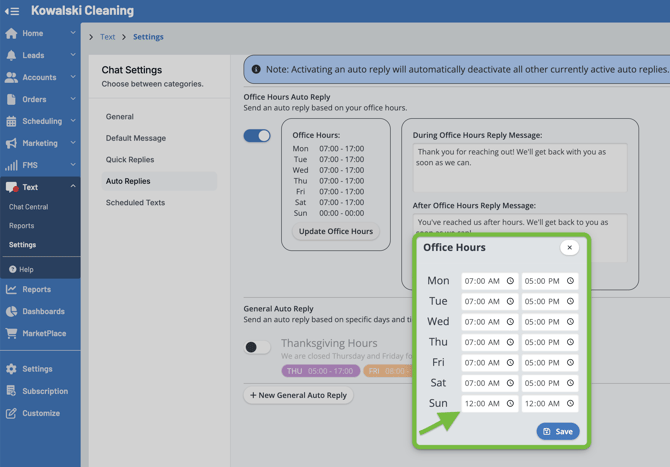
Now enter your messages for during & after hours replies.
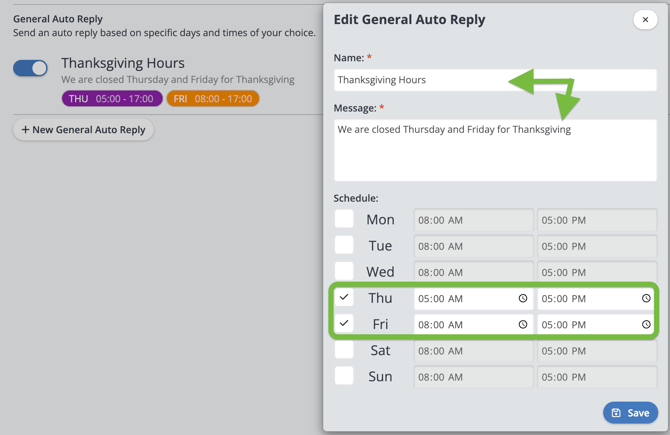
General Auto replies are great for special dates, such as holidays.
Remember that if you enable a General Auto Reply, it will deactivate any other auto replies. For example, if you set a holiday reminder General Auto Reply be sure to re-enable your Office Hours reply when you return to work.
Schedule Individual Texts
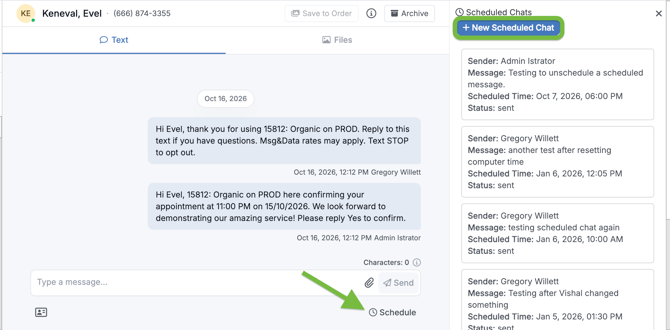
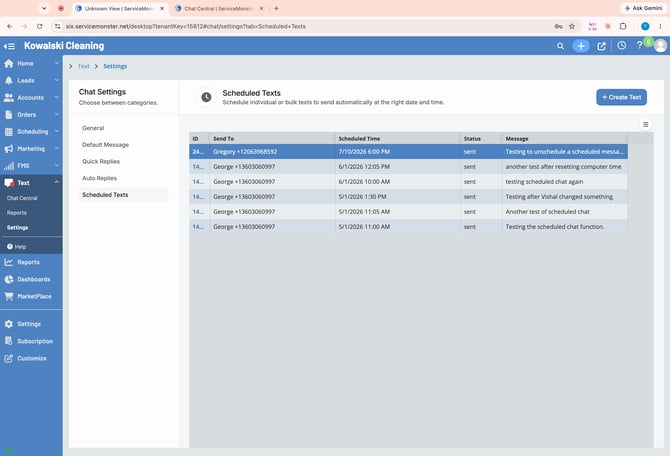
Scheduled texts let you send messages to customers at exactly the right moment. Simply select the client, the date & time to send it and enter the message the send. You can do so from here in Text Settings, or from the customer chat directly!
Create a new scheduled text to send a message at a custom date and time. Click the +Create Text button to begin.
First search for the customer to send the message to & select them. Click OK.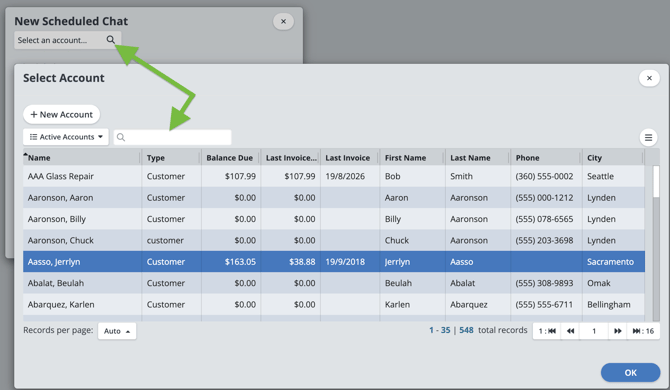
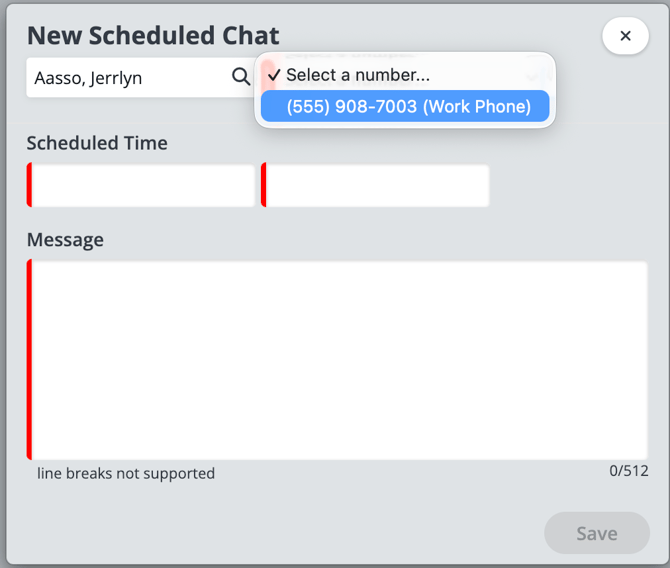
Now select the client phone number to send to.
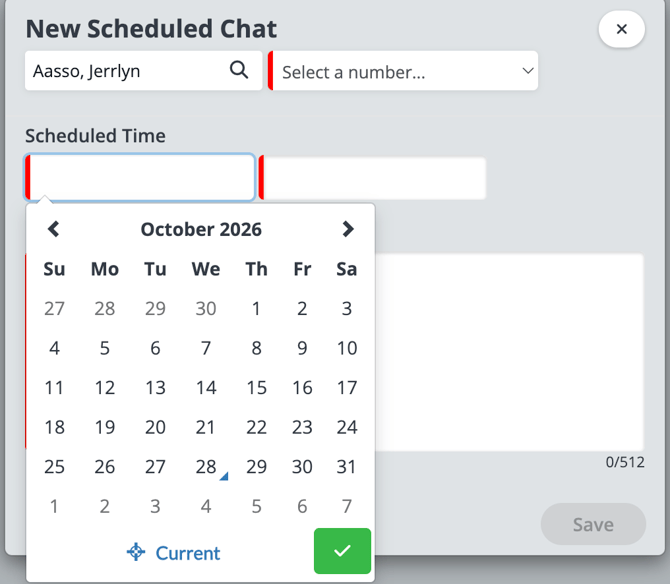
Choose the date & time to send the message.
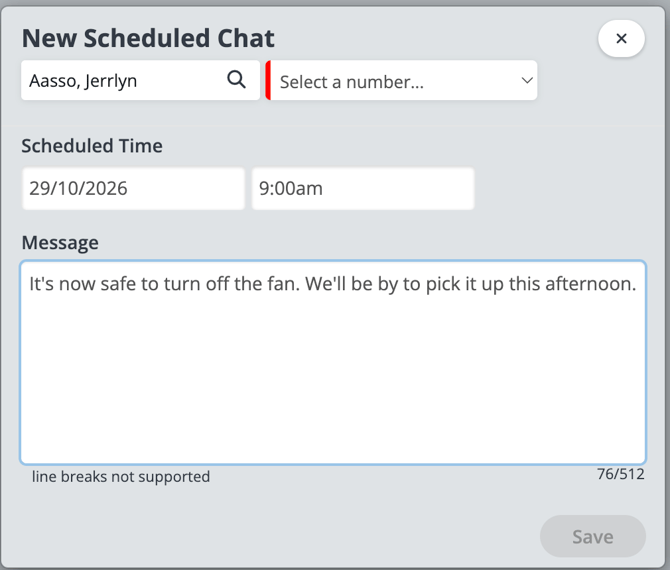
Enter the message to send
Send Quick or Scheduled Texts from Client Messages
You can also send quick texts, replies, or scheduled messages directly from a client’s messaging area for even faster communication.