
Where Can I Make Technician Notes?
You can create technician notes in a few different locations, in the Quick Add, in the Side Bar on the Schedule, and in the Appointment card on the schedule.
Quick Add
When scheduling an appointment in the Quick Add you can add in technician notes by opening the “Notes” tab in the New Appointment window.
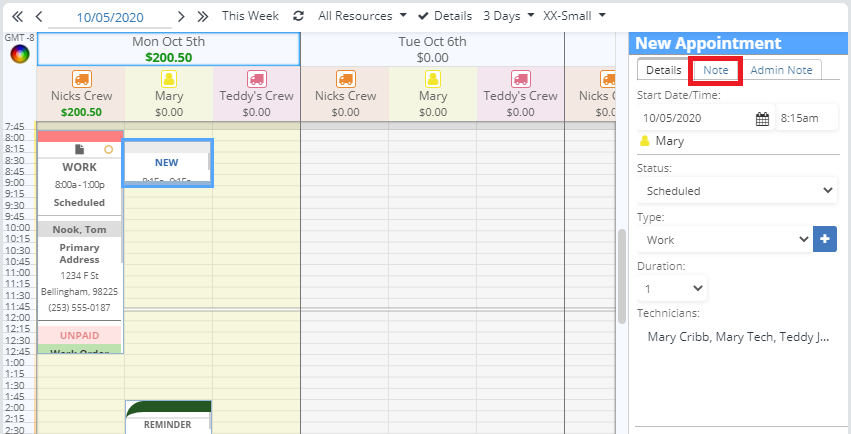
Here you can type in your technician notes for this appointment.
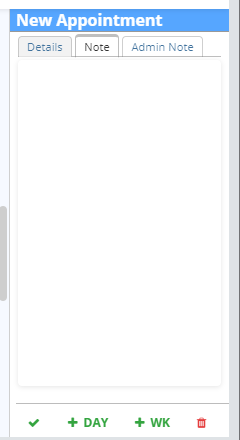
When you click “Save and Close” on Quick Add the note will be saved with the appointment.
Side Bar
You can add in a technician note on the schedule in the sidebar by clicking on an appointment in the schedule to open up it’s details in the sidebar.
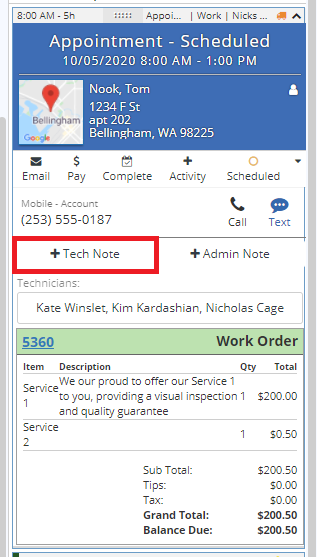
Click “+ Tech Note” to open a box where you can enter the technician note.
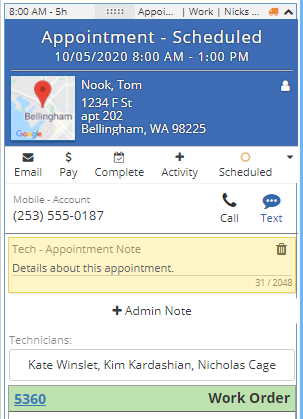
Type out the note in the yellow box. Clicking on the trash can icon will remove the note.
Appointment Card
Double click on an appointment on the schedule to open up it’s appointment card.
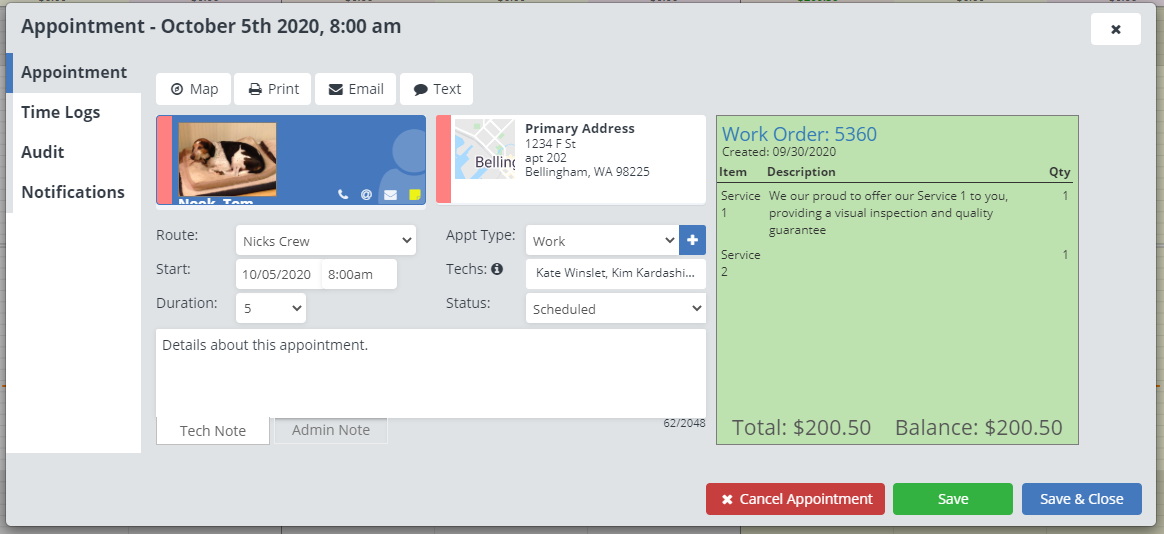
You can enter in the technician notes in the “Tech Note” box. Just be sure to click “Save” or “Save & Close” when you are done to save the note.