

Integrating with Twilio
Creating your Twilio account
Go to www.twilio.com
Select "Sign up" (top right corner)

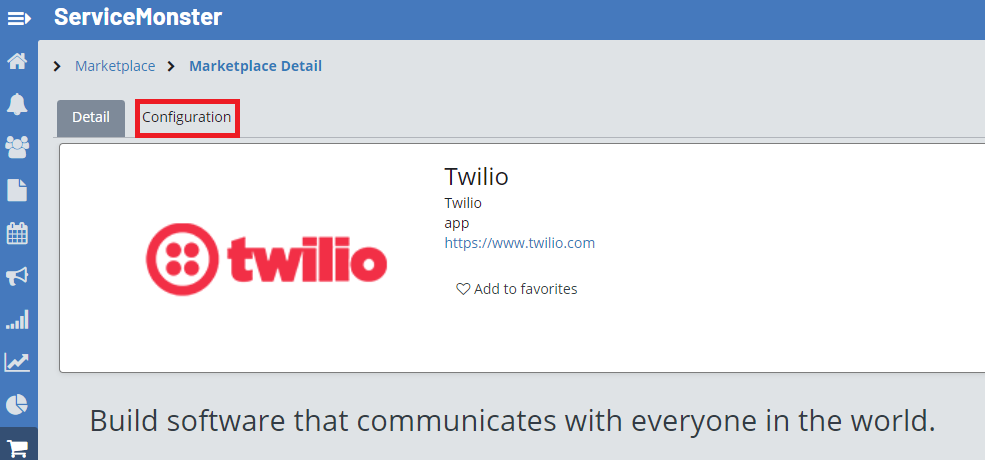
Input your personal information
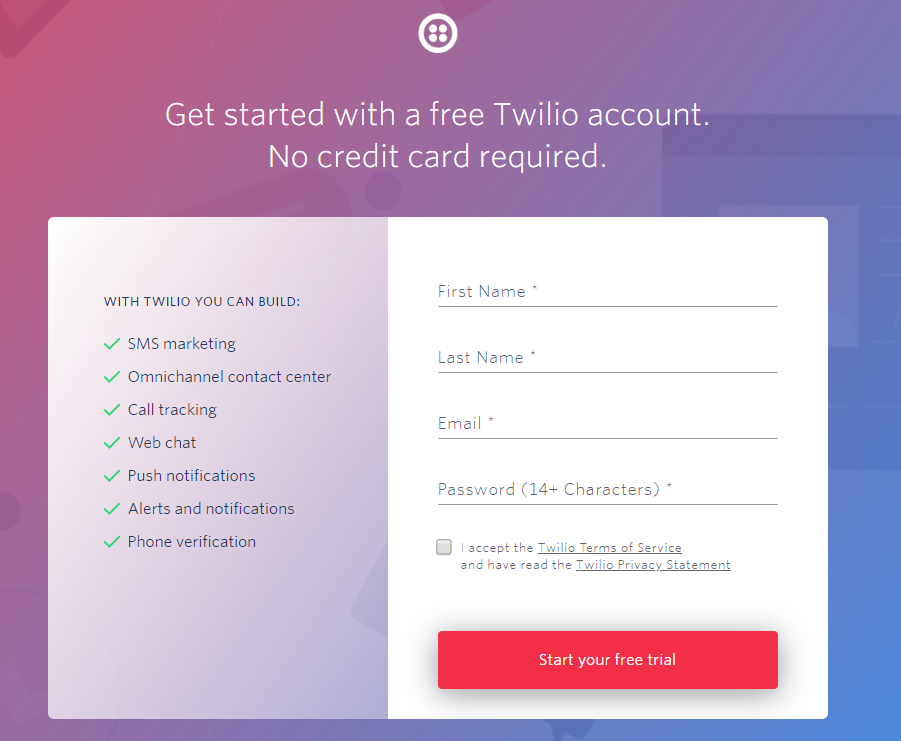
Answer the questions as you see fit, and submit them.
You will also verify your email and phone number
Give your project a name (personal preference), click "Continue"
Once you're through, click on the "house" icon in the navigator (left hand side)
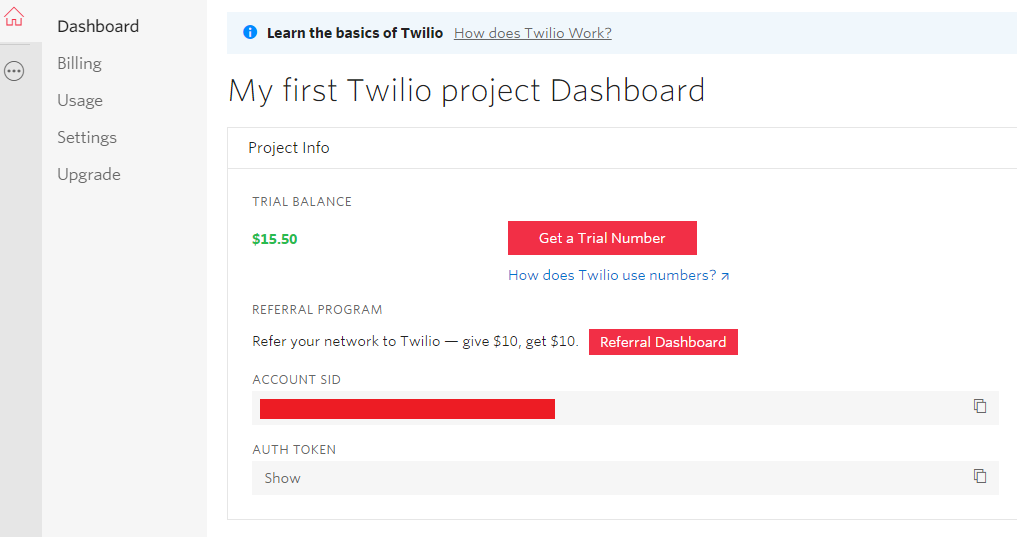
One at a time, copy and paste the Account SID and AUTH TOKEN numbers from twilio.com to ServiceMonster (more detail below)
Connecting with ServiceMonster
Go to Marketplace (Navigator), and click on the Twilio icon
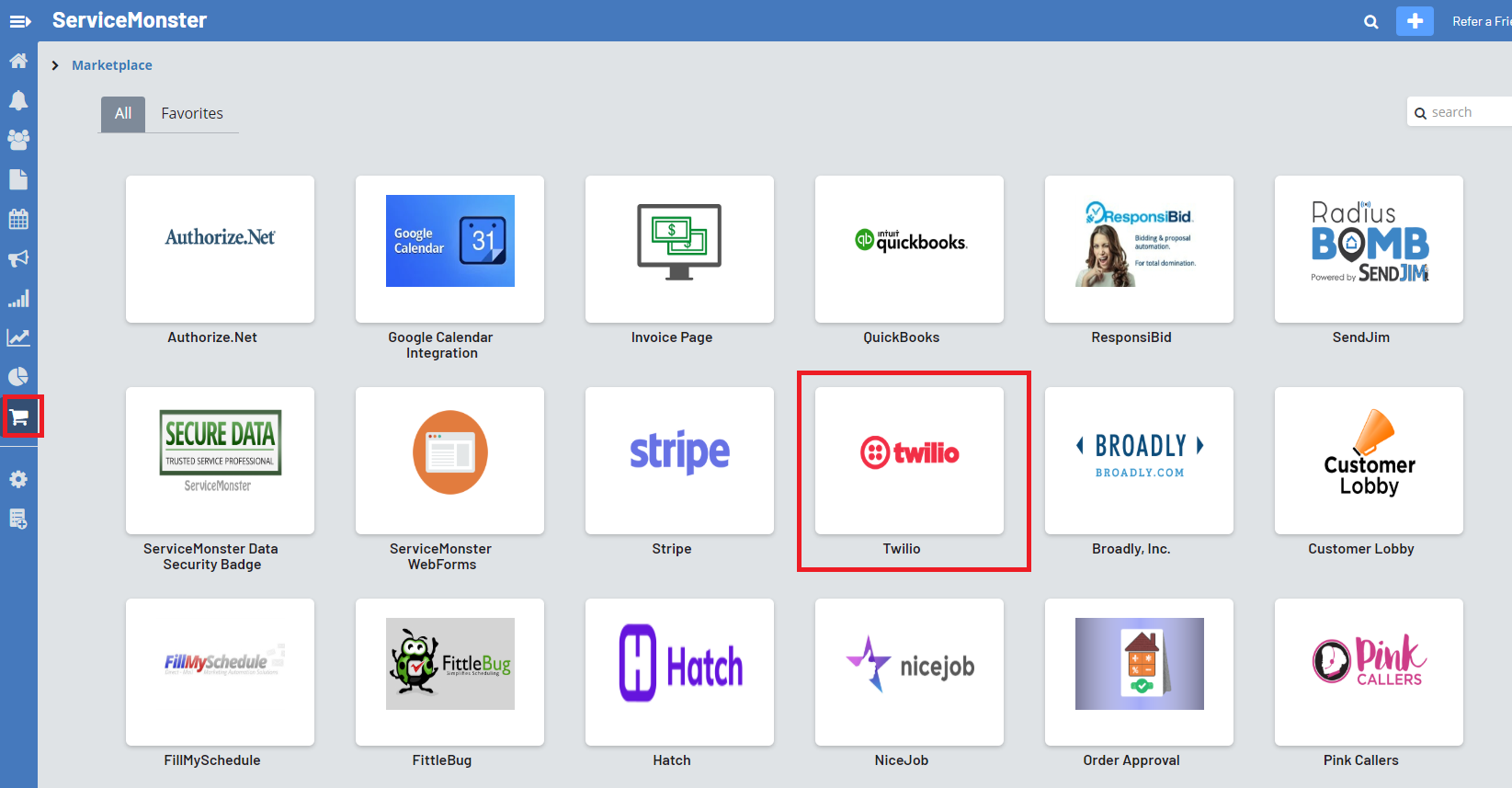
Click on the Configuration tab
Paste the copied Account SID and AUTH TOKEN into the given fields
Click SAVE
Select the outgoing phone number from inside twilio.com (more details below)
Getting a Phone Number
Return to the Twilio Dashboard
Scroll down the page until you see the box "Phone Numbers"

- Select the button "Get a Number"
- Search by your area code to find numbers available in your area
- Purchase a number ($1.00/month) from the list
- Return to your ServiceMonster 6 account.
- Select your new Twilio number from the outgoing Phone Number drop down menu
- Click "Update"
- After that step, you are done in ServiceMonster!
- Return to www.twilio.com.
- Scroll down to the "Phone Number" box and click on it
- From the left hand side, select Verified Caller IDs
- Select the red "+" button (top left corner)
- Type in your new Twilio number
- Select "Call Me" to receive the verification code to verify the number!
- Go to www.twilio.com/console/billing to add funds to your new account.
- Twilio DOES charge per text (About 1000 texts/month will cost $7.50)
Setting Up Your Twilio Messages
This process is for setting up the forwarding of messages to your designated phone number you have purchased. Twilio will respond based on the application you have configured to that number. These messages are saved in your Twilio SMS logs. Here are instructions to set this up.
Prerequisite: Buy a new Twilio phone number and purchase credits for SMS messages
Go to www.twilio.com and sign in to your account.
From the home dashboard, click on the small circle(...) icon (left sidebar)
Scroll down, under Developer Tools, select </>Runtime
Select TwiML Bins from the sidebar
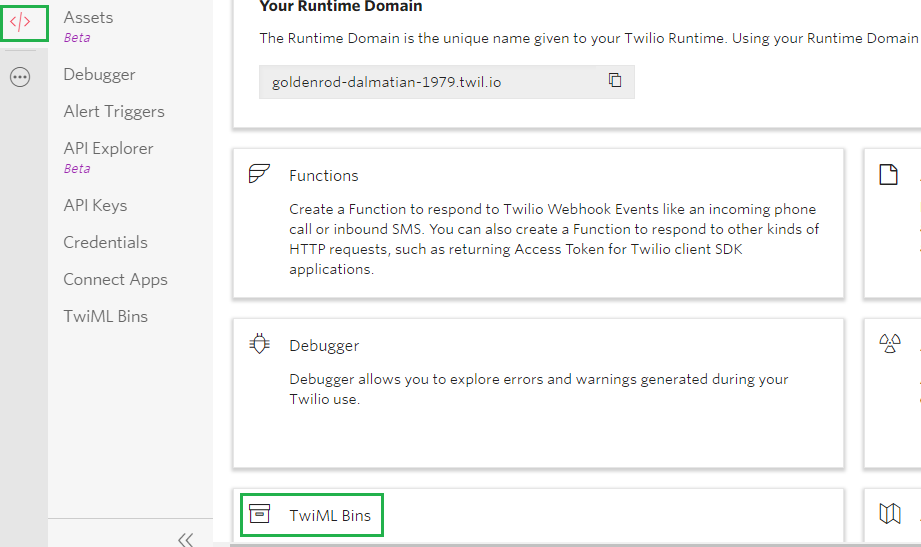
Click the red "+" button

You will add in a Friendly Name and add in the following text into the TWIML Box:
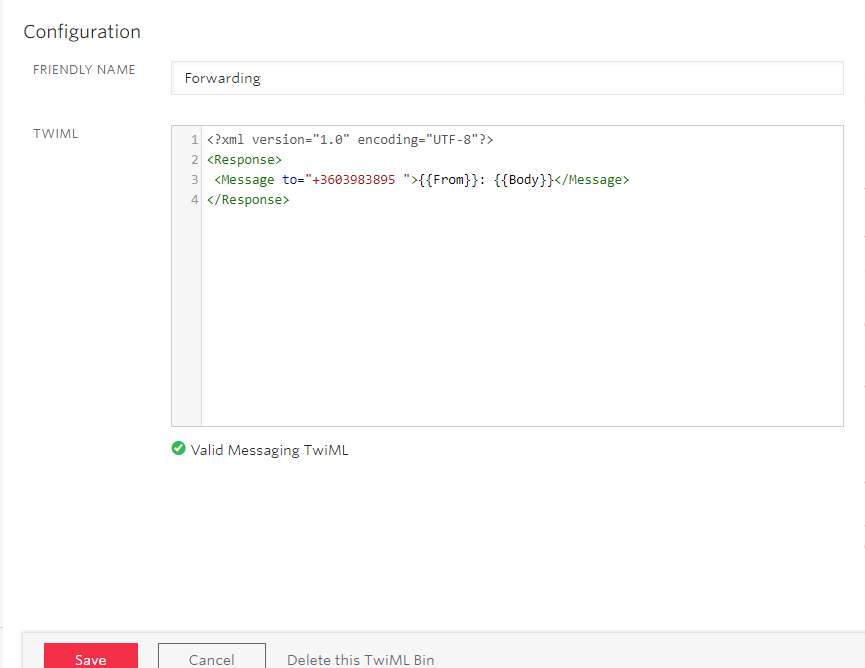
An example of Friendly Name: Forwarding
Copy the code from here:
<?xml version="1.0" encoding="UTF-8"?>
<Response>
<Message to="+49111111111111">
:
</Message>
</Response>Replace the phone number with the phone number you are wanting to forward your SMS to. Include your country code and the "+"7. Click the red Create Button, select Save.
Assigning the Forwarding to the Number
Next, go to the Phone Numbers Icon, and then select on the blue phone number you have chosen to purchase

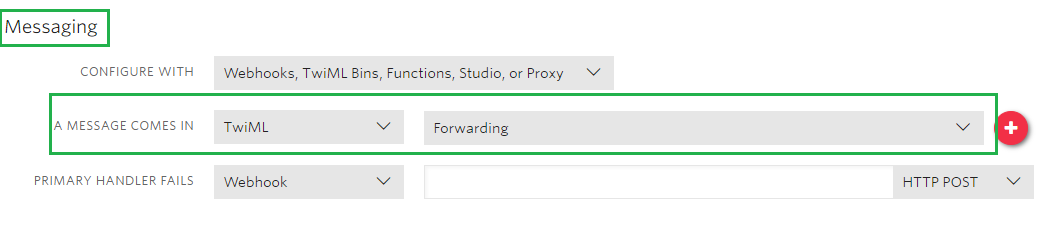
When you are in the Active Numbers and fill in drop downs after "A Message Comes In"
Fill in the First drop down - TwiML
Fill in the Second drop down - Forwarding (this will be the Friendly Name you entered in step 6)
Click SAVE (option on the left-hand corner of the page)
You’re all set!
Now when an SMS comes in, the TwiML Bin will be triggered and the will be replaced with the sender’s phone number and the with the content of the SMS. The returned TwiML instructs Twilio to send a new SMS to your cell phone with the body of the received SMS and the sender’s phone number.Give it a spin and ask a friend to send you an SMS to your Twilio number and you should now receive SMS sent to that Twilio number on your own cell phone.Need more help? You may want to follow the instructions directly from Twilio here: https://www.twilio.com/blog/2016/11/set-up-an-sms-forwarding-number-in-5-minutes-with-twilio.html